A lot of people want to email web pages that they are viewing with a friend or colleague by sending him or her an email that references and displays the page that you are on. This is most commonly achieved by simply copying and pasting a web link into an email message, which may suffice for most purposes. Sometimes however, the exact contents of a page may change, so you may want to preserve it as it is. If so, you’ll have several options available to you.
Note: This tutorial is done on Mac and is specifically referring to the Mail app and Safari browser. The methods will work in any other app too.
1. Screenshots
The foremost and most easiest option is to simply take a screenshot of the page you are viewing. This can easily be done by expanding your browser winder to include the contents of interest, then keystroking “Shift + Command + 3”, “Shift + Command + 4” or “Shift + Control + Command + 4”. If you choose the first option, your Mac will automatically take a screenshot of your desktop and save it to the desktop. However, if you use the 2nd or 3rd option, you can select the region you want included in your screenshot. The extra Control key will let you save the resulting screenshot directly to your clipboard instead of as a file to disk.
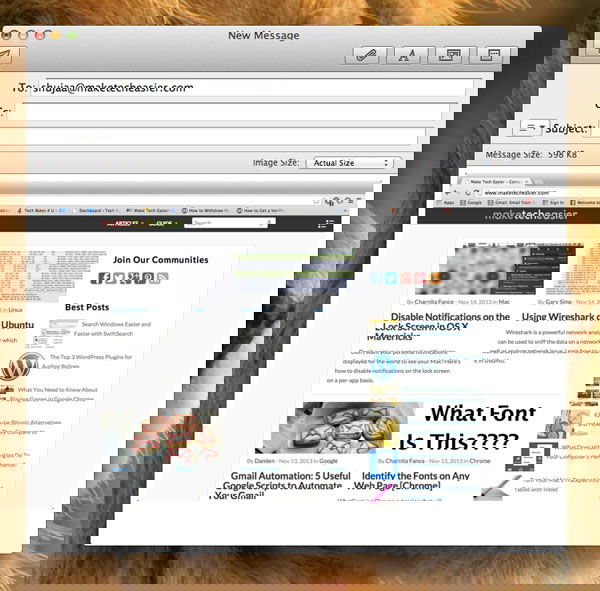
The drawback of using this option is that the screenshots result in a static image, which limits interaction. Additionally, the image is also limited by the resolution of your display, which may become too grainy if one chooses to zoom in.
2. PDF
The second option that you can use is to create a PDF file of the page you are viewing by using the default OS X services. This option also has the benefit of preserving the current page as-is, and also have the benefit that text is selectable, image quality is preserved, and embedded URL links will work.
There are two easy ways to save a page as a PDF. The first one is to use the print dialogue, where you can use the PDF menu to open the page in Preview (for further annotation and editing), save it, or directly embed it as an attachment in a new e-mail message.
The second option, exclusive to Safari, allows you to use the Share menu or to keystroke “Command + I” to capture the page you are currently viewing and open an email with the PDF embedded. Both of these approaches will allow you to send the PDF via email to anyone.
3. Web archive
The third option is to save the current page as a Web archive . This will preserve the page’s HTML, images and other resources into a single file that can be loaded directly from your disk in Safari. The main benefit of this option is that you have ability to preserve the page’s layout as it is, and makes it easily transferrable to others.
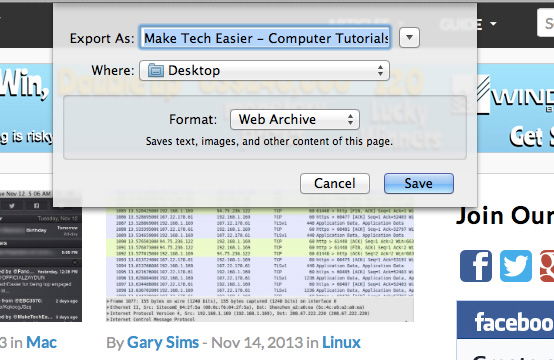
The drawback? The resultant archive might not be available to some, and might not work well with content that automatically updates. The same goes if the page being sent requires plug-ins to view content.
4. Embedded HTML
The fourth and final option is to embed the page you’re viewing as HTML in an email message. This approach takes more steps, and naturally more time, but, like a Web archive, it often allows the page to be viewed exactly as it is, with links, menus and other page elements working to show their content. Unlike the Web archive, this option allows you to render the page directly in the e-mail client instead of switching to the browser.
To do this, follow the given-below steps:
- Open a new blank Mail message
- Go to the desired web page in Safari
- Press “Command + A” to select everything on the page (the contents will be highlighted in blue)
- Click and drag the selection into the e-mail message window or use the system’s copy and paste functions, and it should embed in the e-mail message.
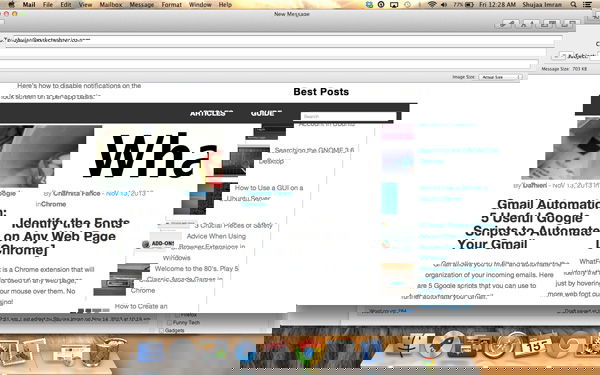
The biggest benefit of this approach is that the page elements can edited and removed manually. For example, if the page in question includes a particular advertisement you would not like to show, you can simply select it and press the Delete key on your keyboard to remove it. Some elements may show a highlight with a small “X” at the top corner, which, if clicked, will remove the entire element.
Which method do you use to send web pages to your friends?