If you are a photographer or a blogger, you should have a pretty good idea about the importance of using watermarks to protect your images from unauthorized use. There are several ways to watermark images. Some prefer using different image editing tools like Photoshop, while other s prefer using online tools.
If you are a WordPress user and don’t want to go through the hassle of watermarking images on your computer and then uploading them on WordPress, we have gathered a list of some of the best plugins that allows users to automatically watermark images in WordPress.
1. Easy Watermark
Easy Watermark is a very handy WordPress plugin that allows users to automatically add watermarks to their uploaded images. Watermarks can either be images or text. In case of an image watermark, all you have to do is upload the image and customize its placement and opacity. The plugin supports multiple image formats including PNG, JPEG and GIF.
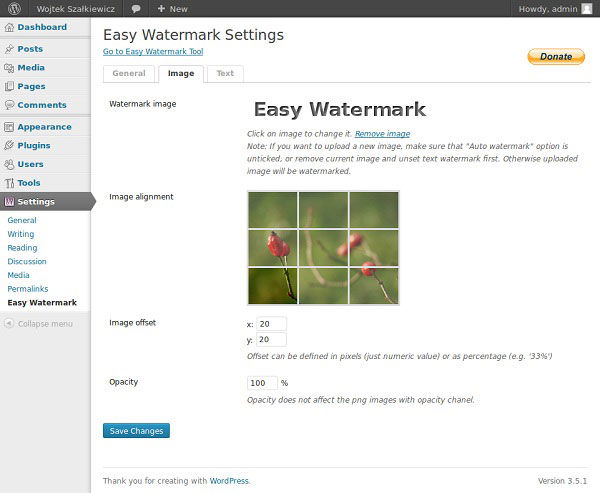
For the text watermark, just type the text you want to use and customize its appearance by changing the font, font size, opacity, text offset, etc.
2. Watermark Reloaded
With Watermark Reloaded, users can automatically add text watermarks on the uploaded images with different fonts, sizes, and opacity and position them anywhere on the image.
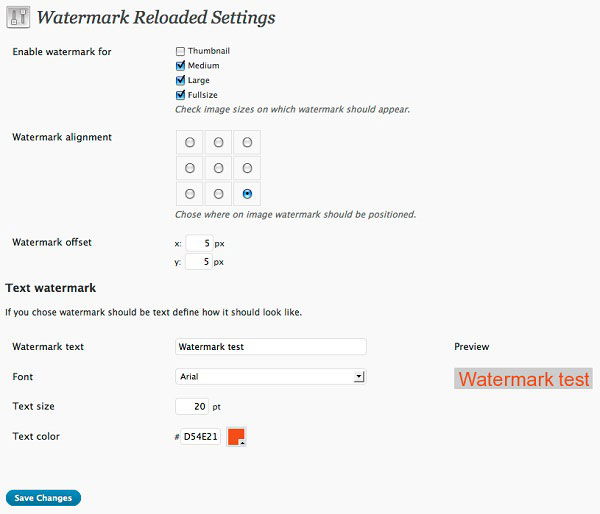
The plugin also offers a pro version with many advanced features such as using an image as a watermark, setting the watermark color and opacity, using text watermarks with outlines and variables, and much more.
3. Signature Watermark
Signature Watermark is another handy plugin that allows users to automatically add watermarks, text or image, to their uploaded images. The plugin offers users a wide range of options to add and customize the appearance of the watermark.

From the plugin settings page, you can add the URL of the watermark you want to use in your images, set the placement and width of the watermark, set opacity and much more.
The plugin also has an Ultra version that offers users a wide range of advanced features, including watermark position, adding watermarks to previously uploaded images, using high quality watermarks, and much more.
4. Watermark My Image
Unlike other watermarking plugins, Watermark My Image adds a text watermark underneath the image. You can customize the height, background color of the watermark, and text alignment, as well as adjust the quality of the JPEG images.

If you want, you can even upload your own fonts in the plugin’s font directory and use them as watermarks.
5. Scissors and Watermark WordPress Plugin
With Scissors and Watermark WordPress Plugin, users can also crop, resize or rotate the images in addition to adding watermark.

Additionally, the images that are edited in the post editor are automatically resampled using bilinear filtering that improves the quality of the image.
Conclusion
These are some of the most useful plugins available in the WordPress plugin directory that allow users to watermark images. It’s hard to say which one from the list is the best, as every user has certain needs. Some prefer to use a simple text watermark, while others may prefer image watermarks.
Do you use any plugins mentioned in the list? If you think we missed any, feel free to share it with us using the comments section below.