Now that 2015 is here, you may have made a resolution to get more organized or to boost your productivity in the new year. Today we’re going to show you how Todoist can help you do that.
Todoist, known as “the world’s most powerful to-do list,” is nothing new; in fact, they have been around since 2007. However, if you’ve been keeping up with them, you know that they’re constantly improving their service and adding useful features. Today, you’ll have the chance to win a one-year premium subscription with Todoist to help you get a productive start to the new year.
One of the great things about Todoist is that it’s a universal service with tools available on many platforms like Windows, Mac, Android, iOS, Chrome, Firefox, Gmail, Outlook, Thunderbird, Postbox and Amazon devices. For the purpose of this review, we’ll be using the Web version.
Adding Tasks in Todoist
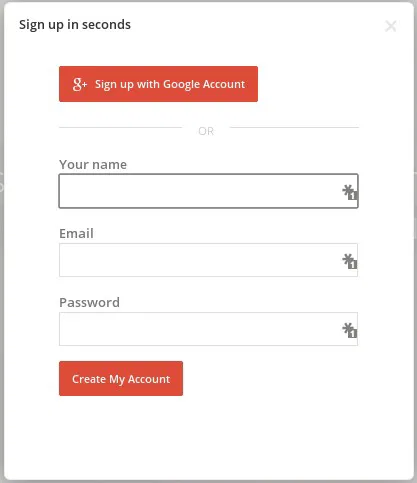
Todoist allows you to sign up by email or with your Google account. Once signed in, you’re taken to the dashboard where you can view and add tasks, projects and labels (which work much like tags). You can also filter your tasks by priority, due date, and more, and even create your own powerful, unique filters.
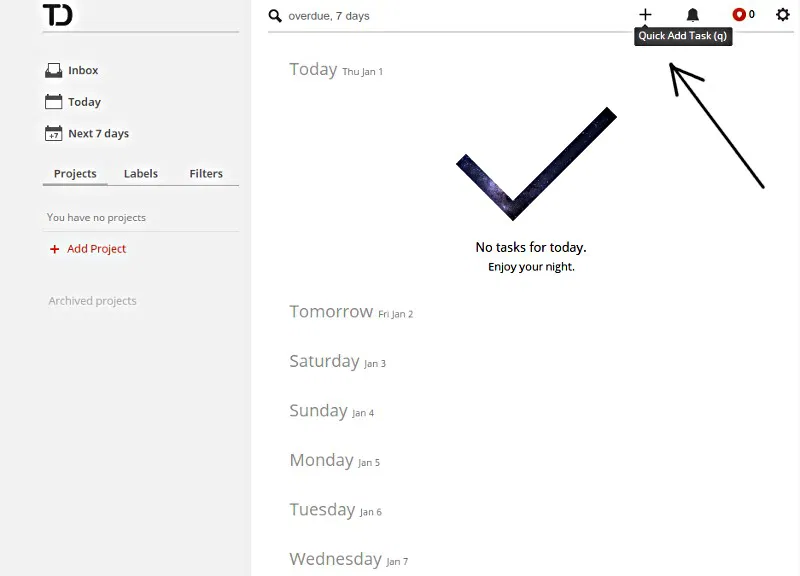
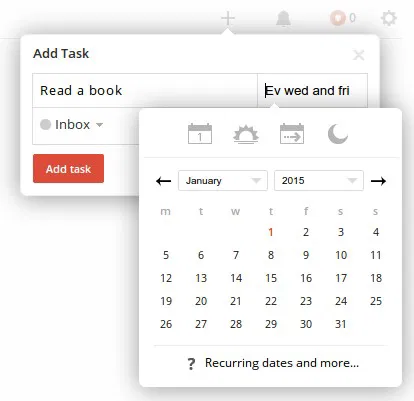
To add a new task, you can either click “Add Task” from Inbox or any project, or click on the plus button at the top right corner of the page to use the “Quick Add Task” feature. This will pop up a small window where you can enter a task, choose a due date, choose a project to add it to, add labels, set reminders and set the task priority.
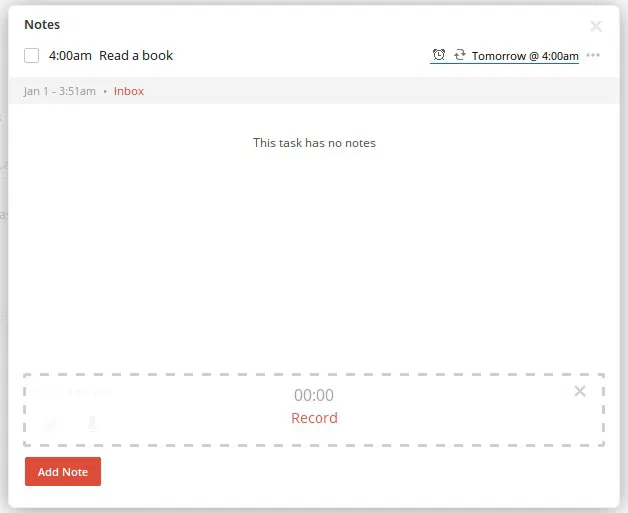
With a premium subscription, you can also add notes, audio and files to your tasks. Not only will this help to keep you organized by allowing you to attach PDFs, spreadsheets, photos and more, but you can also add voice notes so you don’t forget a thing.
Dates and Time Insertion
Setting deadlines in Todoist is really easy since you can use “human dates” – meaning you can use words and abbreviations. For example, you can enter “tomorrow at 3pm” (or “tom @3pm”), “next Friday” (or next Fri), etc.
Todoist also supports recurring dates. Again, you can use common words like “every day at 9pm” (or ev day @9pm), “every 2nd Friday” (or ev 2nd Fri) or even “every 5 days starting next Tue.” You get the idea.
This video shows just how easy it is to set deadlines in Todoist.
https://www.youtube.com/watch?v=XWj0Oy4nwx8
Text Formatting
Todoist has a few formatting options when it comes to your task text.
- Use two exclamation points before and after for bold text.
Example !!This will be bold!! - Use an underscore before and after for italics.
Example _This will be a italicized_ - For links use: “https://www.maketecheasier.com/ (MakeTech Easier).” This will show “Make Tech Easier” as a link in your task.
Although there is a button for setting the priority of your tasks, you can also use one of the following shortcuts before your text: !!1 (for priority 1), !!2 (for priority 2), !!3 (for priority 3) or !!4 (for priority 4).
Setting Reminders
Todoist creates automatic reminders for tasks that have a due date and associated time, which by default is 30 minutes beforehand. You can change the default in settings to 10 minutes, 1 hour or 2 hours.
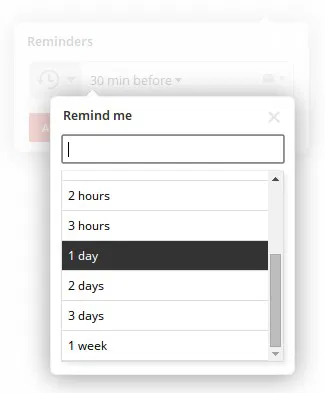
You can also add reminders manually and customize your reminders as necessary. To do this, click on the clock icon when creating or editing a task. Then you can choose a predefined time like 10 minutes, 3 hours, 2 days or 1 week. You can add multiple reminders as well, which is great if you want a reminder way ahead of time and then another right before an event or task needs to be done.
You can also choose how to receive your reminder such as via email, push notification, SMS or even on the Web. In settings, you can choose a default reminder method, but you’ll always be able to manually set this on an individual task basis as well.
Final Thoughts
There are so many other features that Todoist offers (and even more for premium users); I’ve only just scratched the surface. If you like navigating by keyboard, you’ll really appreciate their productivity-boosting keyboard shortcuts. You can use labels to organize your tasks even further or to quickly sort them.
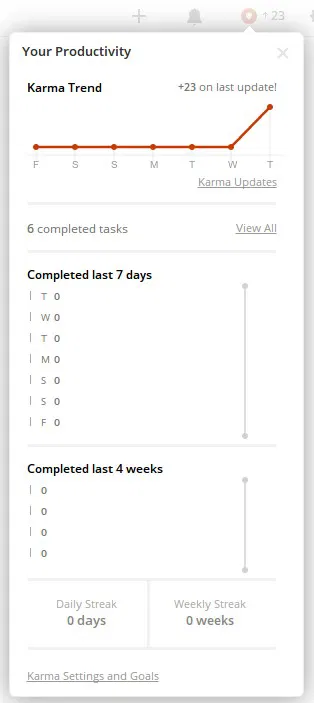
Then there is “Todoist Karma,” which is a visual tracking system that monitors your task management activities and displays your productivity trends. If you want to see how well you’re progressing throughout the week, or want to challenge yourself to do better, this feature will really come in handy.