If you are using multiple computers, you are probably already using a synchronization service to manage your files across different machines. One of the more popular synchronization options is to make use of online storage services like Dropbox, Google Drive and OneDrive to transfer the files from one PC to another. One disadvantage for this is that a copy of your files will reside on the service provider’s server and is susceptible to hack. Another method is to use P2P technology, such as BitTorrent Sync, and sync your files directly between computers.
Syncthing is a hybrid between Dropbox and BitTorrent Sync. It allows you to sync files directly between computers without a third-party server. In addition, it is open-source, and anyone can vet the code for any security issue or even fork it to create your own app.
Syncthing supports Windows, Mac, Linux, BSD and Solaris. Even if you are using different OS on each computer, you can still sync your files from one computer to another.
Get Started
To get started, visit its download page and download the appropriate package for your OS. Extract the zip package and run the installer. In most cases, simply run the executable file to start the service – no installation required.
Once you run the Syncthing app, it will open the web browser and load the Web GUI. This is what you will see – an overview of your current sync status.
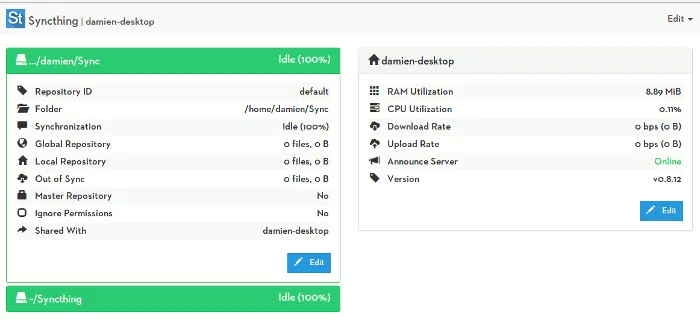
The first thing to do is to add repository. What this really means is to add the folder(s) that you want it to monitor and sync.
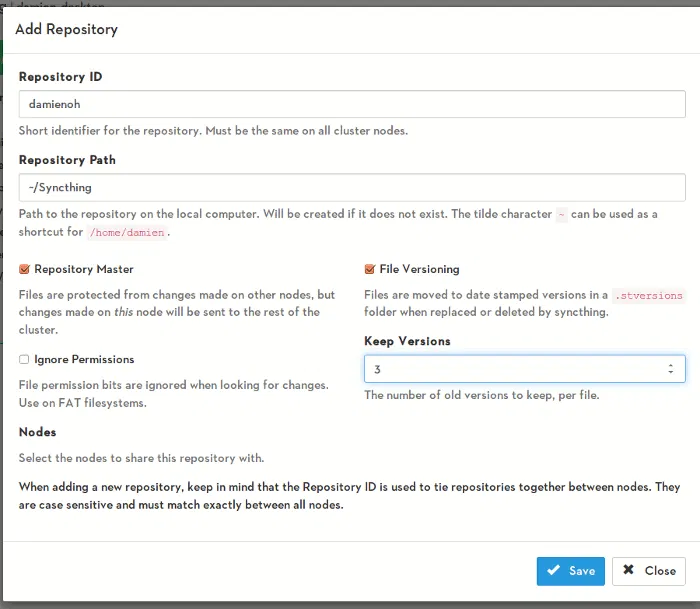
If you have noticed, Syncthing supports file versioning, and you can specify the number of versions to keep on your system. You can even set this current repository as the master, so changes on other machines will not affect the files on this machine.
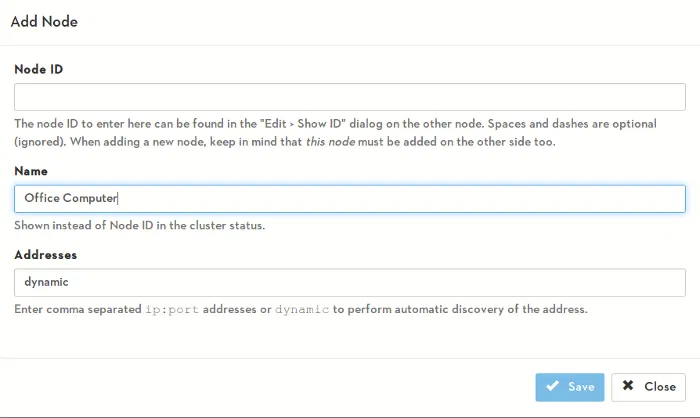
Next, you have to add a node. A node is the remote computer that you want to sync your files to. On the external machine, go to “Edit -> Show ID” to find your Node ID. Use this Node ID to connect as a new node in your current computer.
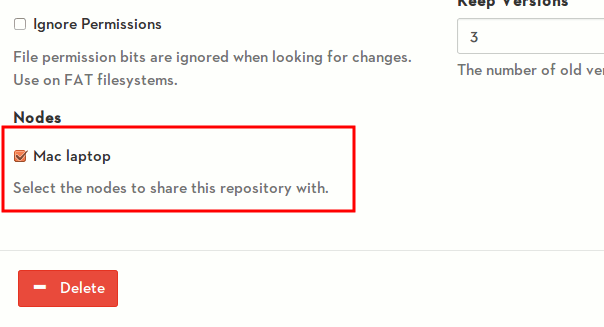
Once you have added the node, you have to go to your Repository settings and add the node that you want to sync to. All the files that you placed in the repository will now be synced to the other machine.
Advantages of Syncthing
Obviously, the main selling point of Syncthing is security:
- Privacy: All your files reside on your computer. You don’t have to worry about the third-party server been hacked and all your files being exposed.
- Encryption: All communication is secured using TLS. The encryption used includes perfect forward secrecy to prevent any eavesdropper from ever gaining access to your data.
- Authentication: Every node is identified by a strong cryptographic certificate. Only nodes you have explicitly allowed can connect to your cluster.
- Open-source: Anyone can look into the code and fix any bug or security issue.
The other good thing about Syncthing is that you don’t have to worry about storage space. Most online storage providers limit you to a fixed amount of storage space. For Syncthing, it is limited by the storage space in your PC.
Conclusion
There are plenty of ways you can sync files between computers, and Syncthing is yet another useful app that you can use. At the moment, it is still under development, and some bugs or issues should be expected. However, most of the features are already in place and have been working well. Being open source and not having to rely on third party services to sync your files does make it an attractive app. Try it out and let us know if this is something for you, or if you prefer to stick with Dropbox, BitTorrent Sync or any other services you are currently using.
Image credit: Update Key by BigStockPhoto