So it’s the day of your big presentation, and it turns out you left your laptop at home. Thankfully the file was synced to your Google Drive, and you manage to download it to a friend’s computer with twenty-five minutes to spare. But then you open the video only to find that you forgot to cut out one of the scenes!
Just a few years ago you would be out of luck. Today, you have options. WeVideo is a video editor that allows you to to load Google Drive videos and edit them inside your browser.
Tip: Use these Google Drive keyboard shortcuts to supercharge your routine.
Using WeVideo
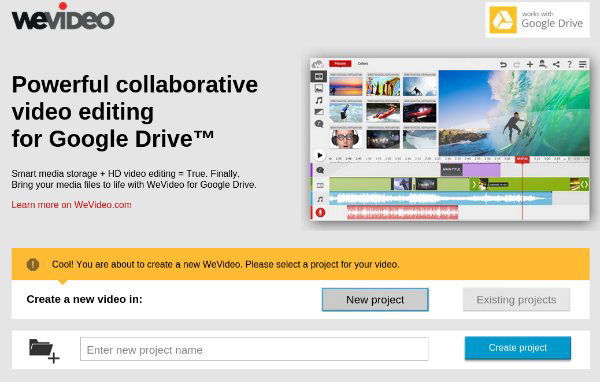
The first thing you need to do is install the WeVideo Chrome app. Create a new project by entering a name into the space provided and click on the big blue “Create Project” button.
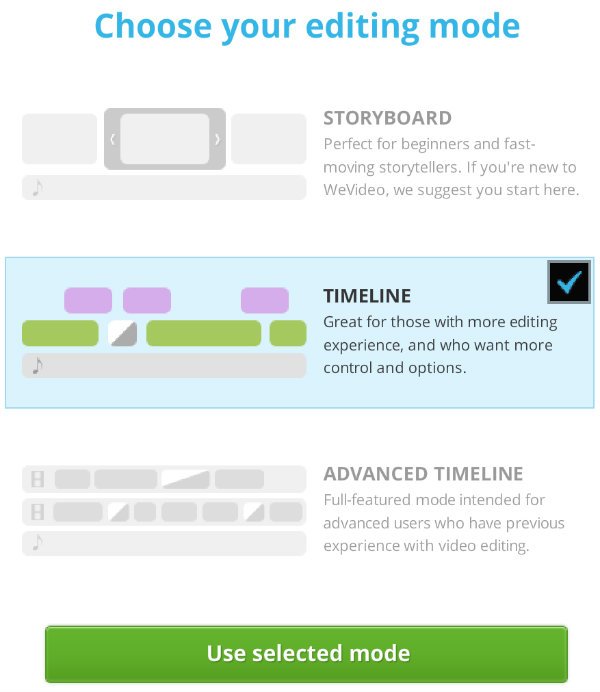
WeVideo offers three editing modes. Since you want to cut out a scene from your video, skip the basic “Storyboard” mode and select the “Timeline” option presented. This editing mode presents a more traditional interface for editing videos.
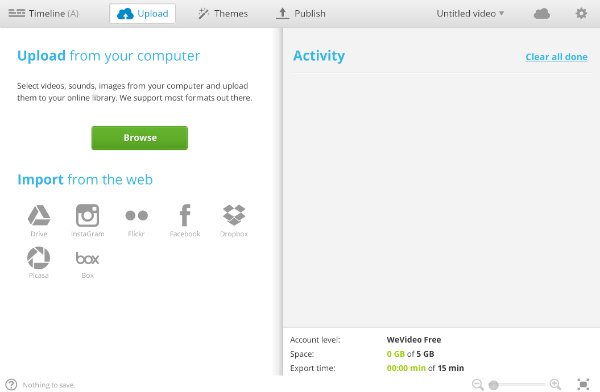
Next you’ll need to upload your file to WeVideo. If the video is saved on your hard drive, you can upload it directly to the service. Since you forgot your computer, you’ll have to import your video from Google Drive. Click on Drive, authorize WeVideo to access your Google account, and navigate to the Google Drive video you’re seeking to edit.
The uploaded clip will have to be processed, which can take up to several minutes. It will appear in the video section of your project when it’s complete. Click and drag the video to the timeline to get started.
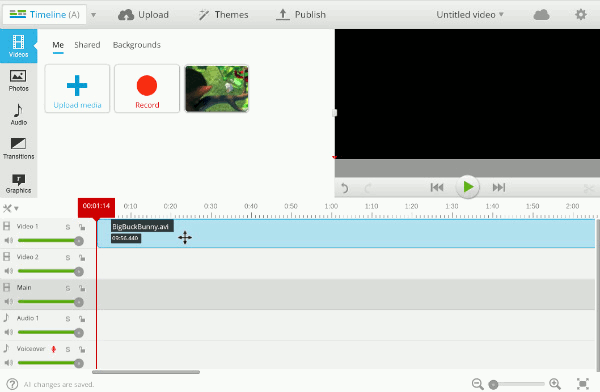
If you’ve used a video editor before, the next step should feel familiar. Go to the beginning of the scene you want to cut and give it a snip. Then navigate to the end of the scene and snip again. Snipping is performed by clicking on the scissors icon located under the preview player.
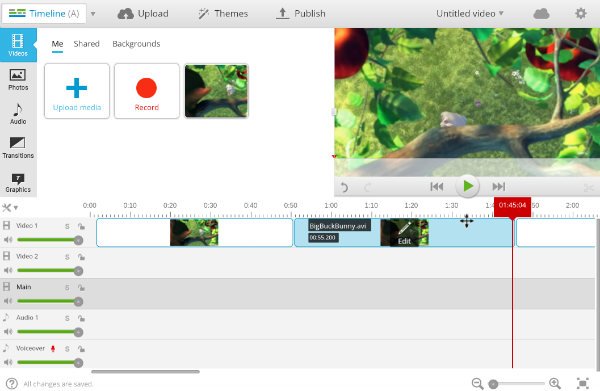
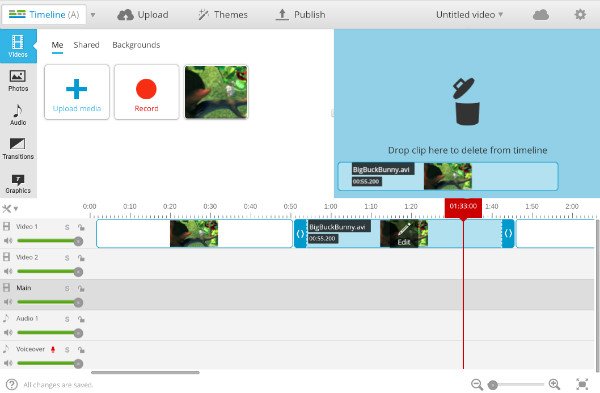
Select the scene you have split and drag it over the preview window to delete it. You will need to drag over the latter portion of the video to join up with the first portion. Hopefully the transition between the scenes isn’t too jarring. If so, WeVideo offers several transition effects that may help alleviate the problem.
Export your edited video using the “Publish” button in the toolbar. By default, WeVideo will export your video to 480p and place a watermark in the top right corner. To export in higher resolutions and remove the watermark will cost you a couple of bucks. Select Google Drive, and the published video will appear inside your account.
You’re Done!
The scenario I’ve created isn’t entirely plausible. WeVideo makes editing videos easy to do from a browser, but the time it takes to upload and export videos prevents video editing in a hurry. Even if you were to finish editing the Google Drive video before the audience began to pour into the auditorium, it probably wouldn’t finish exporting until after your presentation had already started. Regardless, knowing how to use WeVideo in a pinch can save you from having to run home to retrieve the computer you left behind.
If you’ve ever found yourself in need of such a tool, share your experience with us in the comments below.