There are many reasons why you need to do a search and replace in WordPress. It could be that the article you have written on your mobile device has plenty of typographical errors (due to your keyboard’s autocorrect function) and you want to fix them all with a search and replace. Alternatively, it could be that you updated your database or switched to a new web host, and some weird characters are showing up in your posts. Regardless of the situation, it is always handy to have a search and replace function in WordPress. Most text deditors come with this function, so why not WordPress?
Search and Replace button in WordPress Post editor
If all you need is to add a Find/Replace button in post editor so you can easily fix up the typographical errors in the article, TinyMCE Advanced is the best plugin that you can use.
After it’s installed, you can go to “Settings -> TinytMCE Advanced” to find a list of buttons that you can add to the post editor. One of them is the “Find/Replace” button. Drag that icon to the editor menu and click “Save Changes.”
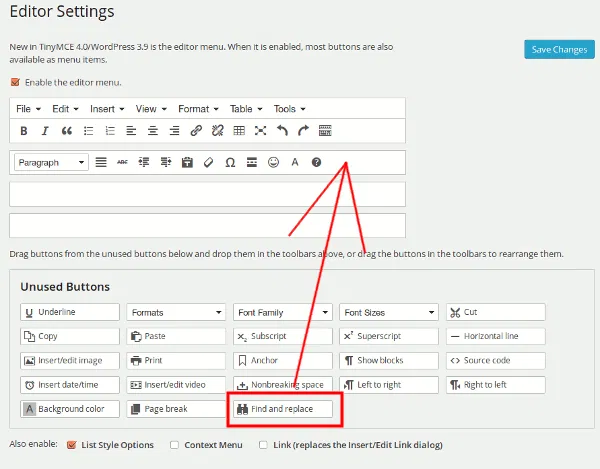
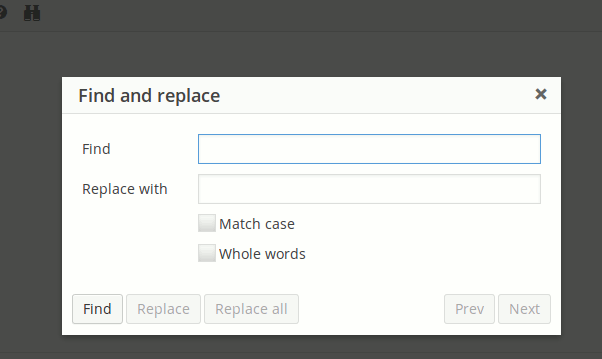
Next, go to your Post editor, and you should be able to find the “Find/Replace” icon in the toolbar. This is what you will see when you click on it:
Similar plugins that you can use include WP Edit and WP Super Edit.
Search and Replace text in all posts/pages/custom post type
If the mistake that you are rectifying occurs in all posts or pages, then the Find replace plugin is the one for you. What it does is search through all your posts/pages/custom post types for the search string and replaces it with the corrected string. This is particularly useful when you migrate to a new domain and want to change all the links from the old domain to the new URL.
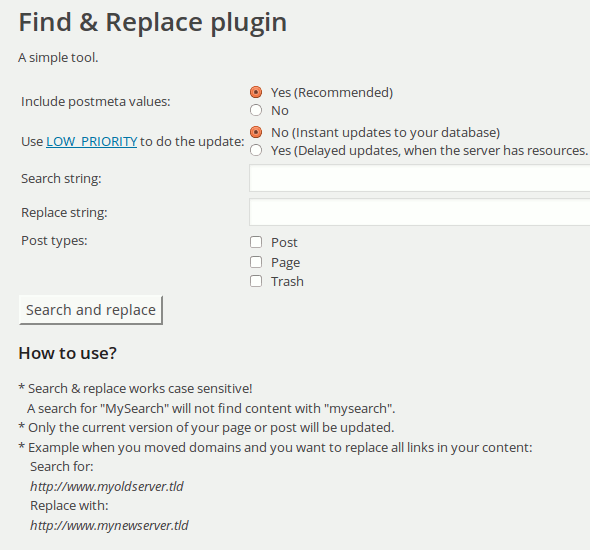
Once installed, you can find the tool in the “Plugins -> Find and replace” section. One good thing about this plugin is that other than post content, it can also change postmeta value.
Search and Replace value in the database
Instead of text in the post content, if what you are changing is a site-wide value, including plugin settings, system settings, etc., you will have to edit the database directly. Luckily there is a tool for this. The Search and Replace plugin allows you to find strings in your WordPress database and replace them with another string. You can search in ID, post-content, GUID, title, excerpt, meta-data, comments, comment-author, comment-e-mail, comment-url, tags/categories and categories-description. It is also possible to replace the user-ID in all tables and the user-login. As you can see, this is a powerful tool, and any mistake that you make might break your WordPress database. Only use this if you know what you are doing, and do backup your database before you proceed.
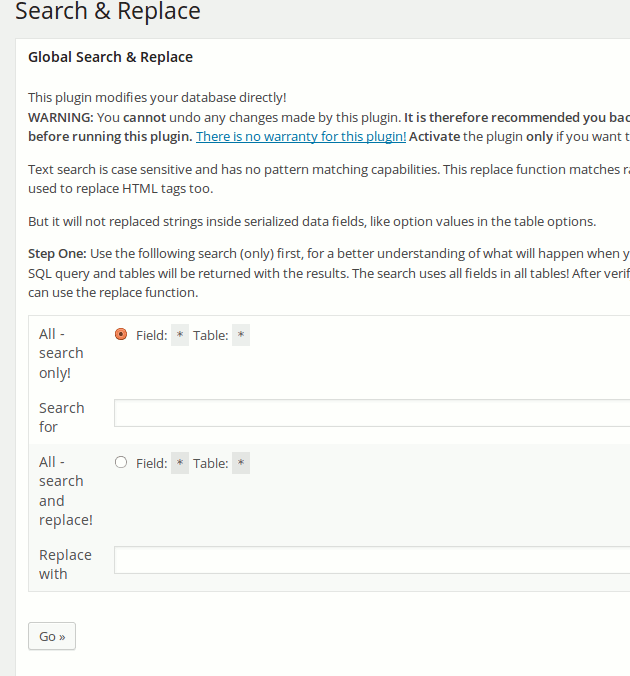
After the installation, go to “Tools -> Search & Replace.” There are two options: you can choose to do an “All search (and replace)” or select the database table to search and replace. The search is case sensitive and has no pattern matching capabilities. You can perform a search first without replacing and verify that the data you are replacing is correct. After that, you can then proceed to do a search and replace.
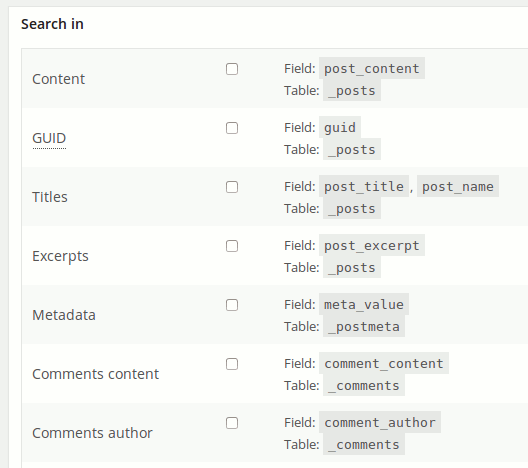
One thing to note is that this Search & Replace plugin doesn’t search serialized data. Technically it means that if a plugin saved its data in array format, its value cannot be modified by “Search and Replace.” Only the text value will be searched and replaced.
Conclusion
Depending on the degree of search and replace function that you want to carry out, there is a plugin available for you. The last method that you can use is to amend the database value directly via phpmyadmin, but that is too technical and is not recommended for everyone. Let us know if you have come across another useful search and replace plugin not mentioned above.
Image credit: tango edit find replace