QR codes are becoming increasingly popular these days. With these QR Codes, you can easily encode links, images, text etc. which can be shared with anyone who has a Smartphone or a device capable of scanning them. In this article, we will show you how you can quickly create QR codes directly from your browser’s context menu.

How to Create QR Codes in Firefox

QR Coder is a very handy add-on for Mozilla Firefox that allows users to convert links, images and text selection to QR codes with a single click. Once the QR code is generated, you can save it to your computer and share them with anyone you want.

Go to Firefox Add-ons Repository and install QR Coder. You should see a new option in the context menu. All you have to do is right-click on the element you want to share and select “Encode URL to QR Code”.
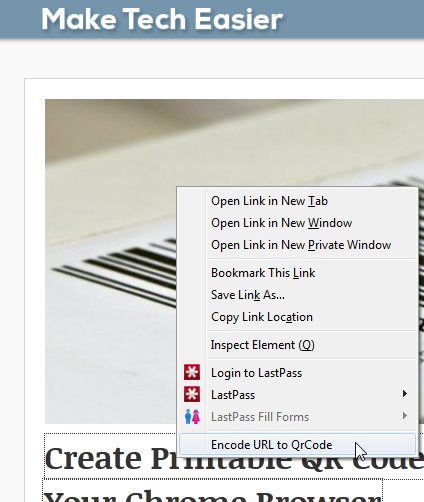
create-qr-codes-encode-link

You will also find a QR code icon in the address bar. Click this icon to convert the web page you are browsing to QR Code.
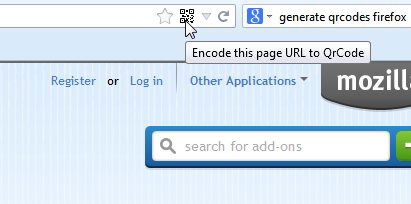
create-qr-codes-addressbar

How to Create QR Codes in Chrome

QR Code Generator is a very handy extension for Google Chrome that allows users to generate QR Codes from the context menu. Go to Chrome Web Store and install QR Code Generator. Once installed, just open any link or website you want to convert into a QR code, right-click on it and select “Generate QR Code”.
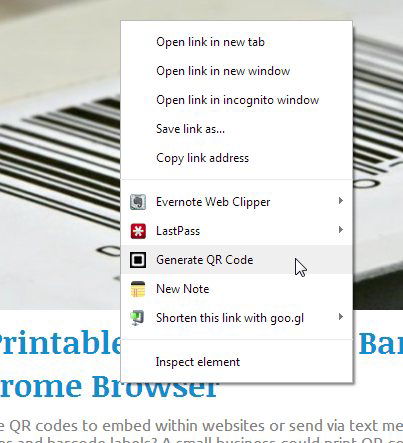
create-qr-codes-chrome

The displayed code can be saved and shared via email. You can also customize the size of the code from the extension settings.
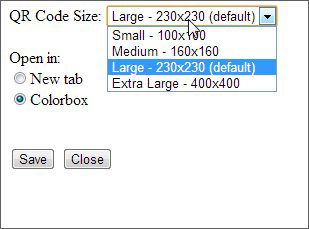
create-qr-codes-chrome-settings

Conclusion

QR Codes can be really convenient when you want to share images or other data with anyone on the go. The extensions mentioned above work great and are really simple to use. Feel free to share your thoughts in the comments below.

Image Credit: Geolocation Specific QR Code

You Will Surely Have A Corrupted WordPress Database Issue. Here Is How You Fix it

WordPress, like any other database driven application, is very prone to having the corrupted database issue. This article shows you how to recover from the issue and get your site back up working again.

Best Plugins to Automatically Watermark Images In WordPress

One of the way to protect your images online is to add watermark to your images. Here are some of the best plugins that you can use in WordPress to automatically add watermarks to the images you uploaded.

Make Mobile Firefox Always Runs in Desktop Mode

If you are using Firefox on a tablet, you may want to switch it to run in Desktop mode by default so websites will always load the desktop version.

How to Import your Instapaper Articles into Pocket

If you are planning to import Instapaper articles to Pocket, the procedure to is extremely easy and shouldn’t take more than a few minutes. Here’s how.

How to Fix Chrome’s Extension Security Problems

Some of the extensions in Chrome store are using hidden adware to make money off of you. Here are some fixes for you to tackle the extension security problems.

How to Know the Word Count of Any Text in Firefox

For those who need to keep track of word count, Word Count Tool for Firefox allows you to easily find out the word/character count of highlighted text in the browser.

How to Organize History By Tags in Google Chrome

The History tool in Google Chrome can be in a mess sometimes. Better History provides a more structured way of searching and viewing recently visited sites.

Stop Gmail from Showing You Targeted Ads

Google has been scanning your emails so as to serve you targeted ads. Here is how you can opt out of the system and stop Gmail from showing you targeted ads.

How to Return a WordPress Multisite Setup to a Single Site Setup

It is easy to create WordPress multisite, but not the reverse. Here is how to return a child site of a multisite setup to a WordPress single site.

TunnelBear VPN: A Beautiful Bear That Just Works

Need a VPN service? TunnelBear VPN can encrypt your Internet connection while changing your public IP address to the country of your choice. Read on for the review and giveaway.

4 Big Questions About Elon Musk’s Satellite Internet Plan Answered

A network in space to provide internet access throughout the world sounds good, but is it feasible? Here are the answers to some of the major questions asked.

Test Your Website in Various Mobile Devices Without Physically Owning the Devices

Google Chrome comes with a nifty tool that allows you to test how your website render in various mobile device. Here is how you can use the device mode in Chrome.