The default way to log in to your WordPress Dashboard is to go to the login page and enter your username and password. What if there was a way for you to log in using your mobile phone and username, and a password was no longer a requirement?

Clef is a mobile app that replaces usernames and passwords with your smartphone. With its barcode-like scanning technology, all you need to do is to scan the wave (that show up on the login page) with the Clef mobile app and it will automatically log you in to your site.

Setting up Clef on Mobile Phone

Setting up Clef is simple, though there are several steps that you need to do. The first thing to do is to install the mobile app on your smartphone. It is currently available for iOS and Android. Once installed, open up the Clef app. Scroll through the screen until you reach the last page where it requires you to create a Clef account.
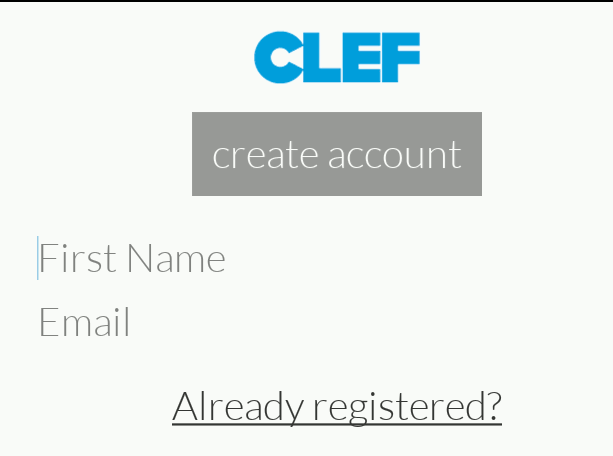
clef-register-account

After creating the account and setting up your pin, you will see a camera screen with the floating wave in the middle.

clef-app-setup-completed

You are now ready to use the app.

Setting up Clef in WordPress

Install the Clef WordPress plugin for your WordPress site. Once activated, go to the Clef settings page and click the “I have the app” button.
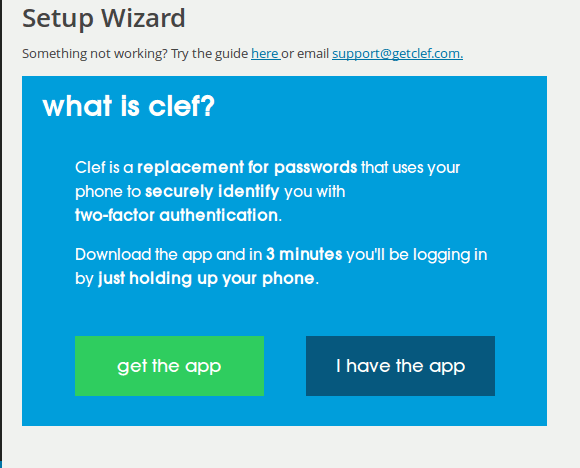
clef-plugin-authentication

The next step is just to point your phone (with the Clef app) to the monitor and align the two waves together. The Clef app will then authenticate the plugin and generate a set of API keys for the plugin to use.
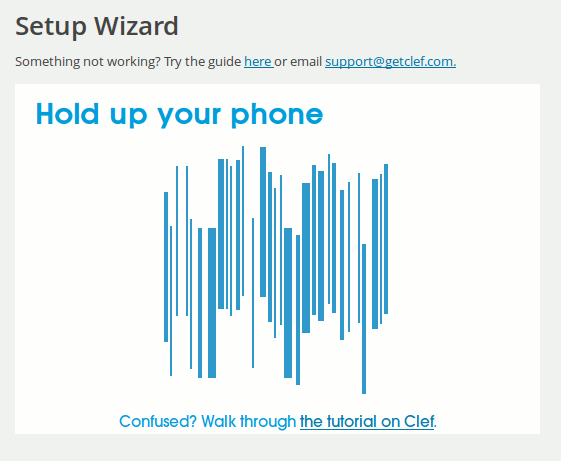
clef-wave-scanning

After all is set up, you will find a new “Log in with your phone” button on the login screen.
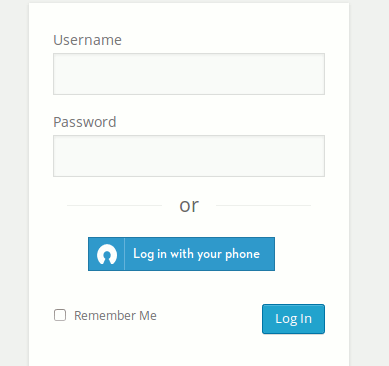
clef-login-with-phone

And with a quick scan of the wave with your mobile phone, it can log you in directly to the Dashboard.
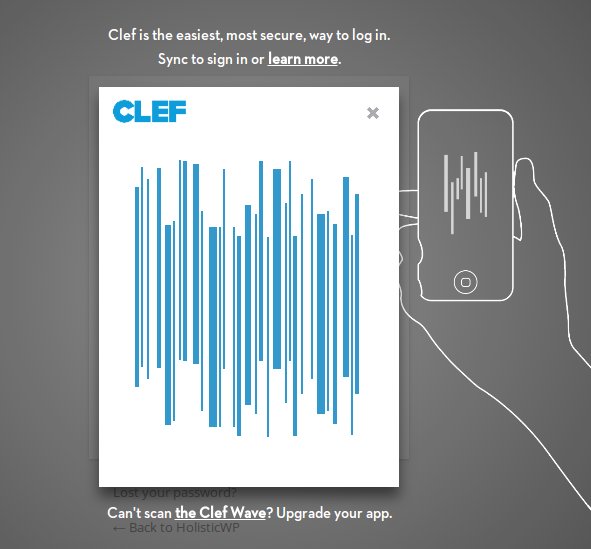
clef-scan-to-login

On the Clef settings page, there are options for you to disable passwords completely for all users or users of a certain role, say administrator.

What happens if I lose my phone?

If you lose your phone, you can go to the Clef website and deactivate your account. For the next phone that you install Clef on, you can then reactivate your account again.

Using Clef on other sites

Other than WordPress, Clef also has a plugin for Drupal. In addition, it comes with API where developers can easily integrate the Clef login to their systems. Other than that, you can also make use of Waltz for Chrome to auto-login to a great number of sites, including Facebook, Twitter, Github, Dropbox, eBay, Craigslist etc.

Conclusion

Password is an invention of the past century and it is growing obsolete, no matter how secure it is. Clef can be a good password replacement tool and is already used on more than 250 websites. Try it out and let us know if it makes your online presence easier and safer.

How to Add Links to Your WordPress Widget Titles

Do you use numerous widgets on your WordPress blog? Have you ever wished that you could add WordPress Widget Titles? If so, you’re in luck thanks to a WordPress plugin called Widget Title Links.

Track Time and Goals Using Progress Bar Timer [Google Chrome]

Tracking your time and task can be a difficult job. While some may have no trouble keeping track of time in their heads, others may benefit from a more visual means of measuring progress. Progress Bar Timer is a Google Chrome extension that turns deadlines and quotas into convenient progress bars to help track time and goals.

Edit Google Drive Videos Inside Chrome With WeVideo

What if you left your laptop at home and there is an urgent need to edit a video that you saved in Google Drive? Thankfully you can make use of WeVideo to edit the video directly in Google Drive.

Show Notification Counts on Pinned Tabs in Chrome

Do you use pinned tabs in Chrome as a way to keep up with your email and/or social networking sites – like Facebook, Twitter, and LinkedIn? Wouldn’t it be great if you could display notification counts for messages and unread items on your pinned tabs? Here’s how you can do so.

How to Quickly Close Multiple Tabs in Browser

There are times when you opened too many tabs in your browser and it is causing the whole system to slow down. A quick and easy way to fix this is to close as many unused tabs as possible to minimize the memory usage. However, it can be a chores if you have tons of opened tabs. Luckily, most browsers come with a way for you to quickly close multiple tabs with a single click.

How to Import your Instapaper Articles into Pocket

If you are planning to import Instapaper articles to Pocket, the procedure to is extremely easy and shouldn’t take more than a few minutes. Here’s how.

Pushbullet: Push Links and Files From Chrome or Firefox to Your Android Device

Sending content from desktop to Android is not as easy as it seems. An extension called Pushbullet for Google Chrome and Firefox makes this task easier.

How to Organize History By Tags in Google Chrome

The History tool in Google Chrome can be in a mess sometimes. Better History provides a more structured way of searching and viewing recently visited sites.

A Beginner’s Guide to Not Being Compromised on the Internet

You may understand what social engineering is, but are not sure how to properly defence against it. Here are a couple of advices for you.

How to Split Screens in Chrome with the New Tab Resize

Tab Resize is a Chrome extension that allows you to easily split the screen layout to display multiple tabs in one tiled view. Let’s check out how it works.

Enable HTML5 Playback in Google Play Music

The default settings of Google Play Music in a web browser make uses of Adobe Flash. Alternatively, you can switch it over to run on HTML5. Here’s how you can enable HTML5 playback in Google Play Music.

Why Websites Go Down, And What They Do About It

Have you ever wondered what large companies do to ensure that their websites stay up, and why websites sometimes go belly-up for a few hours? It’s time to speak about both of these things!