Collecting data from the web can be a tedious task, and working from one web page to another can take a huge chunk of time that you do not have. When it comes to copying and pasting information from one place to another, it’s nice to know that there are tools out there to help lessen the time spent doing it.
For those who like copying text from multiple web pages at a time, it’s great to know that a Firefox add-on called Text MultiCopy makes the task faster and easier. The add-on allows you to copy multiple texts before saving it to the clipboard so you can paste them somewhere else all at the same time.
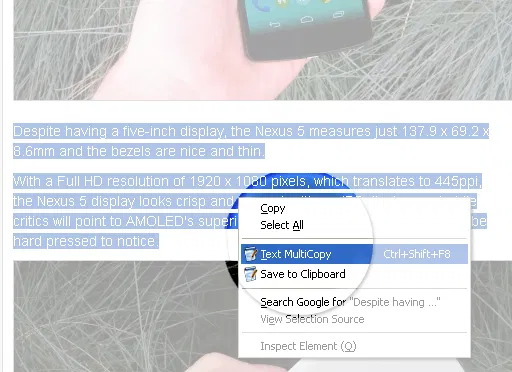
The add-on requires a restart after installation. Upon restarting, you can now start highlighting text from any webpage, and using the context menu (right-click), select “Text Multicopy” from the list. You can also use the shortcut key “Ctrl + Shift + F8.”
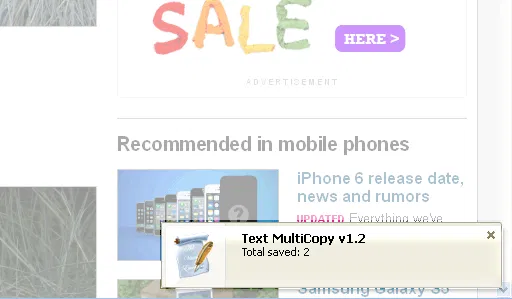
A pop-up will appear on the bottom right-hand side of the browser indicating that the text was copied along with the total number of copied content. In the example below, the pop up indicated that I had two copied pieces of content.
You can repeat the process for as many batches of text as you want. When you’re ready to paste, simply right-click and select “Save to Clipboard.” This is a very important step. Pasting the data won’t work unless this is done.
After clicking on “Save to Clipboard,” you can paste the data either by using the context menu again and selecting “Paste here,” which only works within the Firefox browser, or use the old Ctrl+V hotkey.
You can also paste the information outside of the browser and into other text editing software. If you’re pasting in a text editor or word processor, you can use the Ctrl+V hotkey instead.
Clicking on “Save to Clipboard” refreshes all saved data. If you accidentally click on this without the intention of pasting, you’ll lose all copied text you’ve saved before and will have to start over.
On the other hand, Multi Copy saves your copied data even when you exit the browser, and even if you didn’t click on “Save to Clipboard” yet. Whatever you’ve started copying, it is saved and remembered when you open the browser again. Any copying you do then will be added to existing copied data.
Here’s what the copied text looks like in Microsoft Word:

The link sources of the copied text are appended. In the example above, there are two batches of copied text each followed by their URLs. This seems to be a default format for pasting the information, and there appears to be no way of changing it.
This add-on is extremely functional and useful for multiple copying and pasting of text. The fact that it can save copied information even when Firefox is closed is its strongest feature. Although a little flexibility is welcome, this add-on can be indispensable for those who are serious about their curating of data and information from different source on the web.