Recently, Evernote added an extra layer of security to their service: two-step verification. This will help to protect your account from unauthorized access, and also means that there will be an extra step needed whenever you log into your account (including applications connected to your account).

Whether you’re an Evernote junkie or just a casual user, it is a good idea to set this up as soon as possible; it will only take a few minutes of your time.

To get started, you will need to go to Evernote.com, sign in and then click on your name at the top right corner of the page. You should see an “Account Settings” option in the menu that drops down.
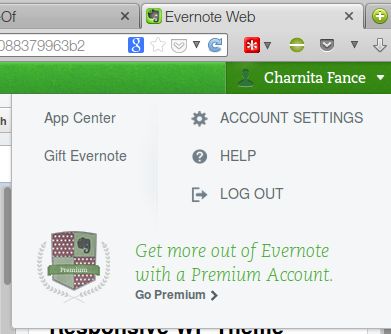
Click on your name in the top right corner and go to Account Settings.

On the Account Settings page, go to “Security” in the left column and you will see the option to enable two-step verification on the right side of the page. Click on “Enable” to get started.
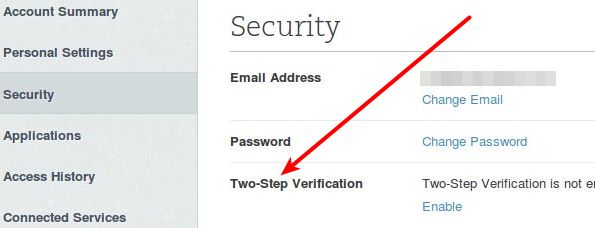
Click on Security and then click on Enable.

You’ll see a pop-up with some important information regarding two-step verification. Click on “continue” twice after reading about some important things to remember.

Now you’ll be required to verify your email address (a valid email address is required to use this feature). Click on “send verification email” and within a few minutes you should get a confirmation code in your email.

Once the email is received, you can copy and paste the confirmation code or just click on the big “confirm email address” button in the email.
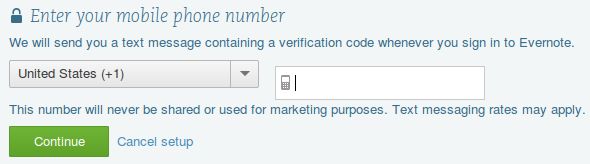
Be sure to use a valid mobile phone number here!

Now enter your mobile phone number (Google Voice numbers also work) and click on “continue.” Within seconds, you should get a verification code sent to that phone number. Enter the code and click “continue.” You’ll then have the option enter a backup phone number. This is not required, but is handy in case you lose access to your primary phone number.

Evernote two-step verification also works with the Google Authenticator application (iOS, Android, Blackberry) and it walks you through the installation and setup for your device. This is also optional, so you can skip it if you’d like.
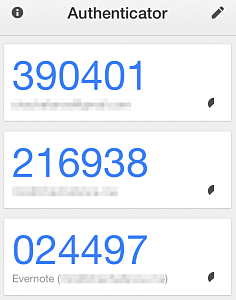
The Google Authenticator app for iOS.

If all goes well you will see the message “two-step verification setup is complete.” You are now doubly protected!

How to Sync Bookmarks Between Firefox and Chrome

If you work with both Firefox and Chrome, and need your bookmarks to be available on both of them, here is how you can sync bookmarks between Firefox and Chrome.

Turn Multi-Page Articles Into a Continuously Scrolling Single Page

Have you ever clicked on an article that was broken up into numerous pages? Those multi-page articles can be really annoying and time-consuming. If you’re tired of clicking “next” over and over again, here’s how to turn those multi-page articles into a single page.

Analyze Writing Errors with SlickWrite for Firefox and Chrome

Most spelling and grammar checkers in word processors spot obvious writing errors, but not the less obvious ones. Slick Write is a web service that analyzes writing errors as well as performs the usual spelling and grammar check.

Block Javascript For A Single Site in Google Chrome

Rather than blocking javascript browser-wide, wouldn’t it be great if you can block javascript only for a specific site? Here is how you can do so.

3 Ways to Allow Guest Users on Google Chrome

If you’re using Chrome and don’t feel like letting people poking into your privacy, here are some ways to set up guest users account in Google Chrome.

9 Ways to Make Better Use of Gmail Filters

Gmail filters is a good way for you to organize your inbox without you doing the manual work. Here are a few ways that you can make good use of Gmail fliters.

Clef: Log In to WordPress Without Any Password

Tired of typing your username and password everytime you want to login to a site? Clef is a password replacement app that allows you to login without password.

3 Reasons Why Encryption Is Not as Safe as You May Believe

What if I tell you that your encrypted data may already be cracked by the hackers? Here are some examples why encryption is not as safe as you may believe.

How to Enable Private Tabs in Firefox

Private browsing in Firefox requires you to open a new window. The Private Tab addon allows you to open private tabs in Firefox instead of a separate window, making it easier for you to keep track of multiple sites at a time.

MTE Explains: What Is an RFC?

You’ve probably seen the term RFC thrown around in applications that you’ve been using. What is this mysterious RFC that people been talking about? Let’s find out.

How to Run Android Apps in the Google Chrome Browser

Have you ever used an Android app and find that it could be useful for your desktop as well? Here’s how you can run Android apps in Chrome browser.

TunnelBear VPN: A Beautiful Bear That Just Works

Need a VPN service? TunnelBear VPN can encrypt your Internet connection while changing your public IP address to the country of your choice. Read on for the review and giveaway.