While we have all been enjoying Android apps on our smartphones and tablets, the time has come to use the same apps and games on our PCs. Thanks to the talented developers, we now have a workaround that helps us run any Android app or game in the Google Chrome browser. All you need is a few extensions and you are good to go.
Note:
1. This only works for the Google Chrome browser on your PC. Both the Mac and the Windows versions are supported. Here is the tutorial for Linux.
2. Although the extension supports a large number of apps and games, not all of them are compatible. There is no harm, though, in trying it out to see if your favorite game falls under the supported apps list.
Running Android Apps in Google Chrome
1. Launch Google Chrome on your PC and head over to the ARChon extension link. Save the extension ZIP file to your desktop. It’s quite a large file, so it should take a while to download.
2. When the extension is downloaded, double-click on it, and it will be extracted to your desktop. You will see a new folder on your desktop containing the extension files.
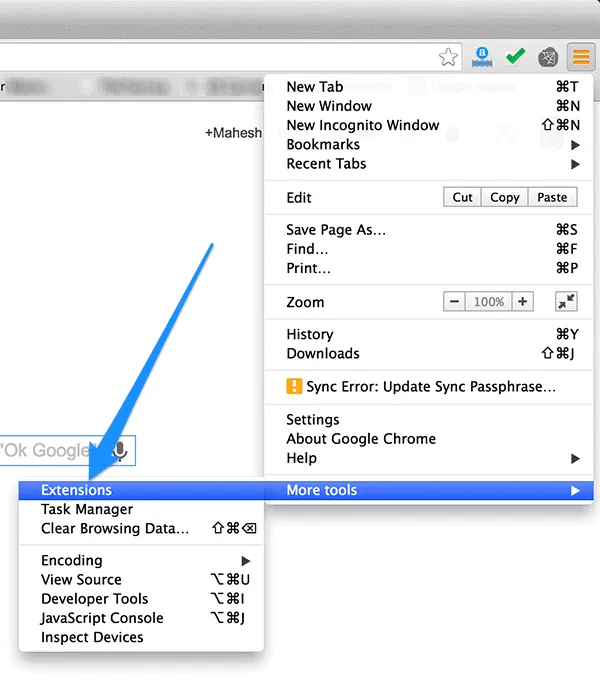
3. In Chrome, click on the menu given in the top-right corner and select “More tools” followed by “Extensions.” It will take you to your extensions page that lists all of the extensions you have installed on your PC.
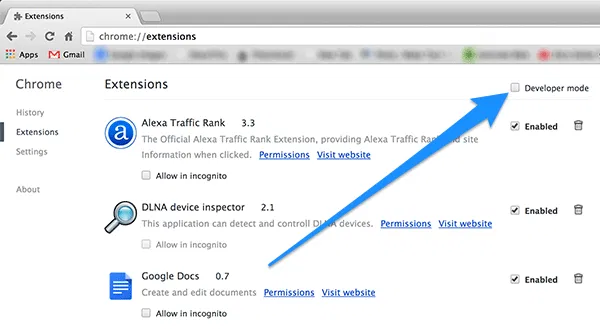
4. On the extensions page, check the box that says “Developer mode”. It will enable the developer mode so you can then install extensions that are not available in the official Chrome store.
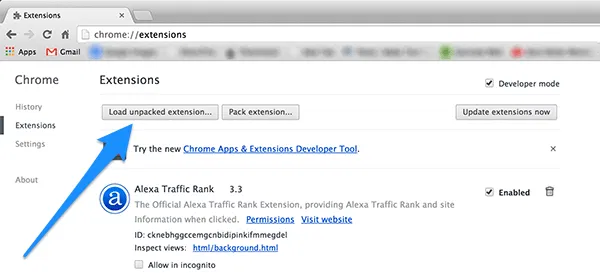
5. Then click on the button that says “Load unpacked extension…” It will let you manually add an extension to your browser.
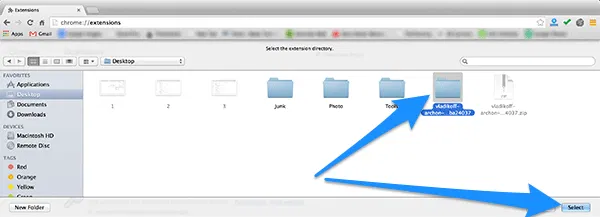
6. When the select file dialog box appears, navigate to your desktop and select the extension folder and click on “Select.” Your browser will then load this extension.
7. You will now need an APK that will be converted to a format that ARChon extension supports. You can transfer the APK from your device, or you can download the one from sites like XDA Developers.
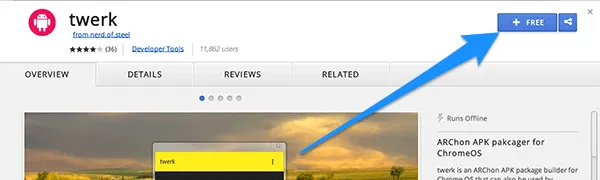
8. Head over to the Twerk page at the official Chrome store and click on “FREE”. It will download the Twerk Chrome app on your PC.
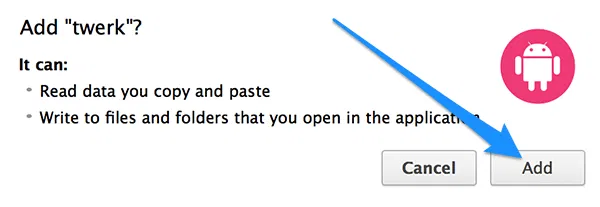
9. A prompt should appear asking if you really wish to add the selected app to your browser. Click on “Add” and it will be added to your browser.
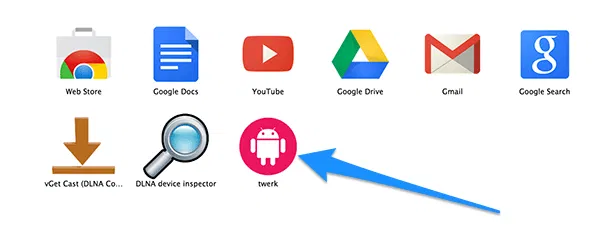
10. When the app is added, open a new tab in your browser and type in chrome://apps and hit Enter. It will open the apps page in your browser. Then, click on the “twerk” app icon and it will launch.
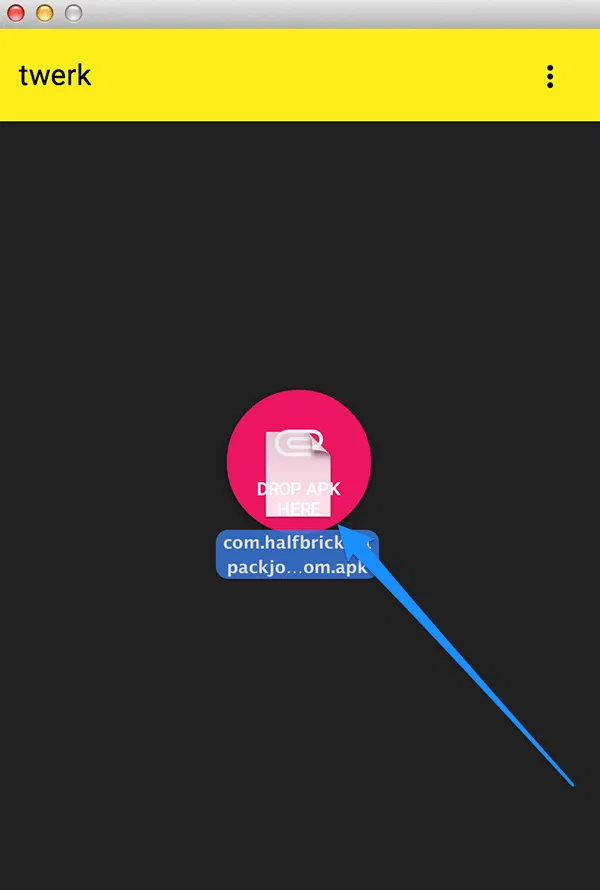
11. It should say to drop an APK and it will convert it for you. Drag the APK you copied earlier and drop it onto the twerk window.
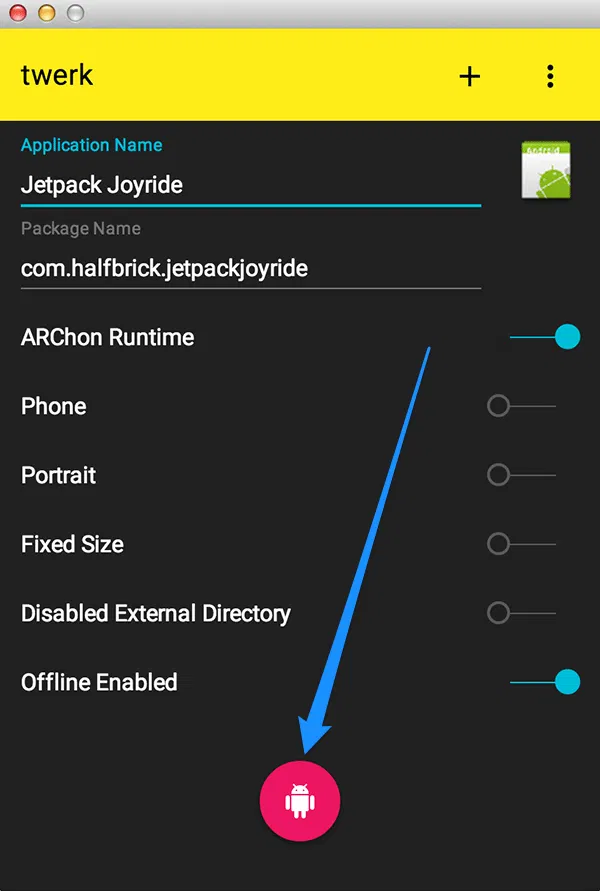
12. As soon as you drop an APK, it will launch the information panel with some fields pre-filled in for you. You will need to enter the application name though. Enter the name for your app, and click on the pink Android icon given at the bottom.
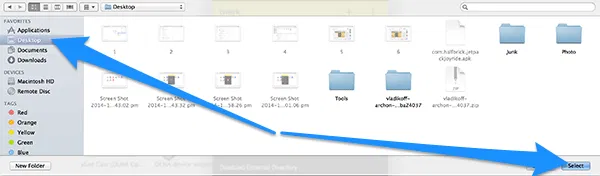
13. You will then be asked where you want to save the converted file. For the sake of simplicity, select your desktop as the destination and click “Select.” Your output file will be saved on this location (your desktop).
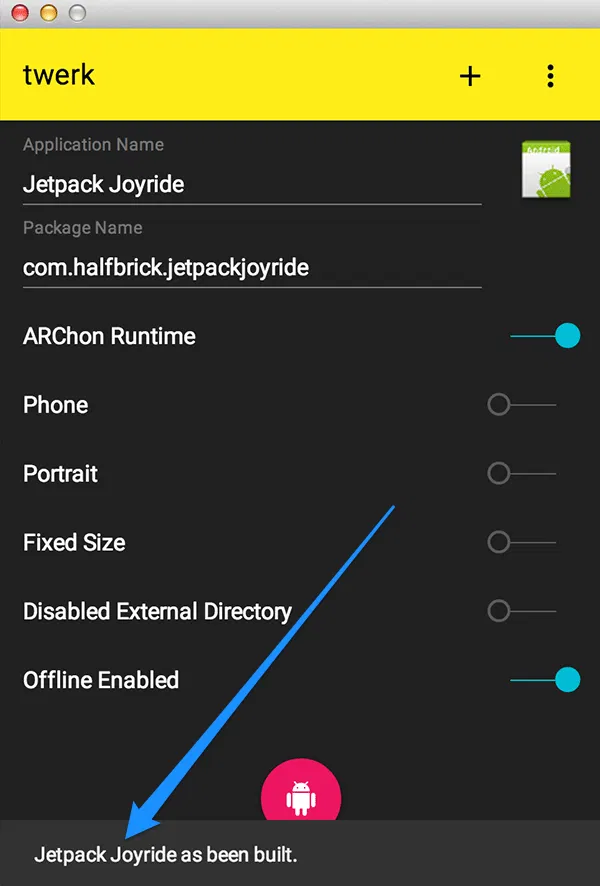
14. When the output file is generated, the twerk app should say “AppName as been built”. It means the APK was successfully converted to be used with ARChon extension and is available on your desktop.
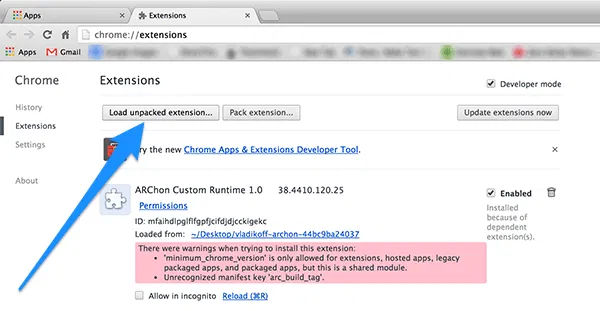
15. Open a new tab in your Chrome and type in chrome://extensions and hit Enter. It will open the extensions page. Then, click on the button that says “Load unpacked extension…”. It will let you add the converted APK to your browser.
16. Navigate to your desktop and select the folder that was generated by Twerk and click on “Select”.
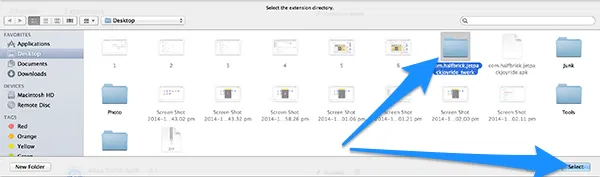
17. The selected folder will then be imported to your browser. Then, open a new tab and type in chrome://apps and hit Enter. You will be able to see the app you converted using Twerk. Just click on it and it will launch.
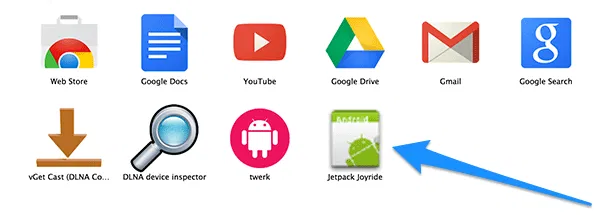
18. You are all done!
You can now play around with your favorite Android apps or games right inside your browser (Chrome).
Conclusion
The workaround above helps you run your favorite Android apps or games in your browser, so you don’t need to leave your work only to play Temple Run for a few minutes.