Being on social networks usually involves a great deal of sharing content with your friends and followers. There are lots of tools for easier content-sharing across most of the popular social networking services such as Facebook, Twitter and Tumblr. Most of them would require a few minutes of your time configuring stuff before you can go ahead and share whatever it is you want — a link to an article, a photo or video clip. This makes the process a daunting one for the novice user and an annoying necessity for the advanced one.
If you want to try a faster way to share web content online, you might want to try an extension for Google Chrome called Cortex. Cortex lets you share any content to your social networks (Facebook, Twitter, Tumblr, Posterous, to name a few) with literally just a click of a button.
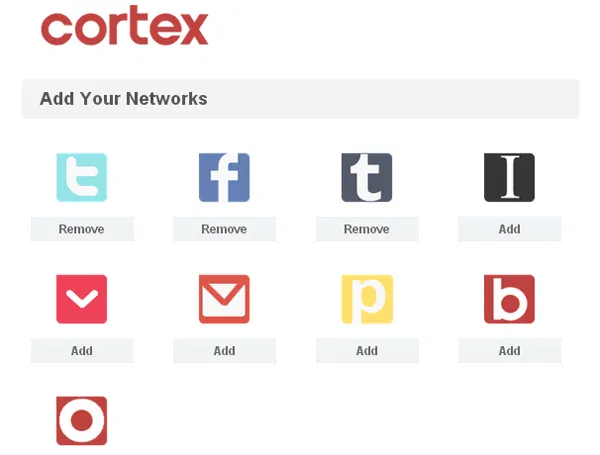
After installing the extension, you will immediately be taken to another window which will ask you to add your networks. Clicking on the icons will open a new window where you can log in to your account and authorize Cortex to access it. Once you’ve added all networks, click on the Next button on the bottom.
The next screen will be a brief tutorial of how Cortex works.
As the tutorial states, you’ll need to click and hold down your left mouse button for the round Cortex menu to appear.

For now, you won’t be clicking on anything but a white, empty space. But in actual cases, you need to do this while the mouse is over the content which you want to share.
Once the menu is there, do not let go of the mouse button. While still pressing down the mouse button, move the cursor to select to which network you want to share the content.

A text box will then appear, and you can add your notes/comments about what you’re sharing. When you’re ready to share, simply hit Enter.

A popup window will appear on the upper right hand corner of the browser, indicating that the post was submitted. You have two options: View post or Undo. Viewing the post will take you to that exact page that you shared. Click on Undo to stop the content from getting posted. This option appears only briefly, and goes away after a few seconds, so be sure to click on it as soon as you can.
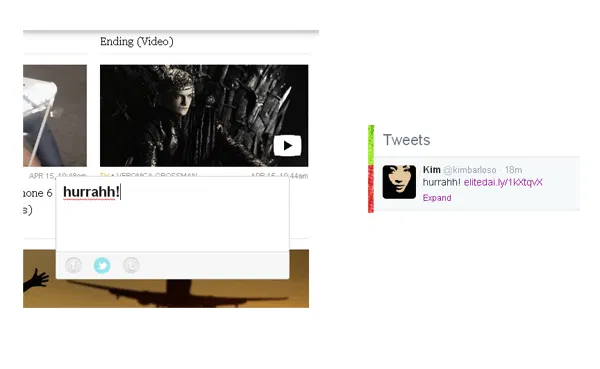
Here’s an example of a link I shared to my Twitter feed using Cortex.
For something that’s so simple, Cortex is also powerful and just as robust as other content-sharing apps that came before it. It does the job, and in less time than you care to spend. The only downside is that it is missing some other social sharing networks, such as Reddit, StumbleUpon and a handful of others. Hopefully we get to see such services added over time. In the meanwhile, this extension works good enough for those who want save time when sharing stuff online. It’s easy to learn, and even easier to use.