Markdown is a hybrid of text editing with no formatting features and word processing in a program such as Microsoft Word; this leaves it nearly entirely universal across operating systems – we have already examined some of the best tools for writing in Markdown on Windows, but there are numerous tools for writing in Markdown via the Web, just as there are for editing complex documents, and we’ll be taking a look at some of the most well-known: Dillinger, StackEdit, Markable, and Backpager.
As with the Modern UI apps available on the Windows Store, the majority of Markdown editors for Web use provide a familiar split-pane view, displaying Markdown syntax on the left and a preview of the final version on the right.
1. Backpager
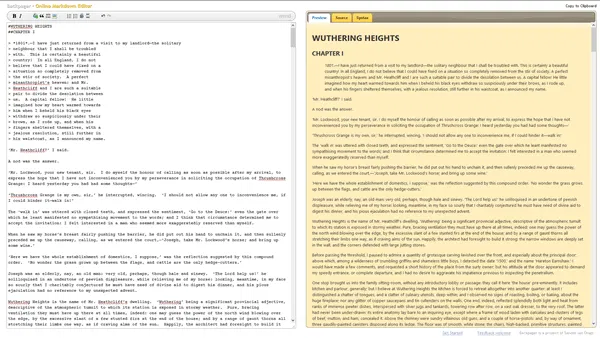
Backpager is the first app we decided to take a look at, with its straightforward interface appearing highly promising for anyone looking to work with Markdown. While it follows the familiar split pane interface of many other Markdown apps, it splits the interface even further with its options for the preview tab, making it possible to copy the direct HTML source or to double-check Markdown syntax.
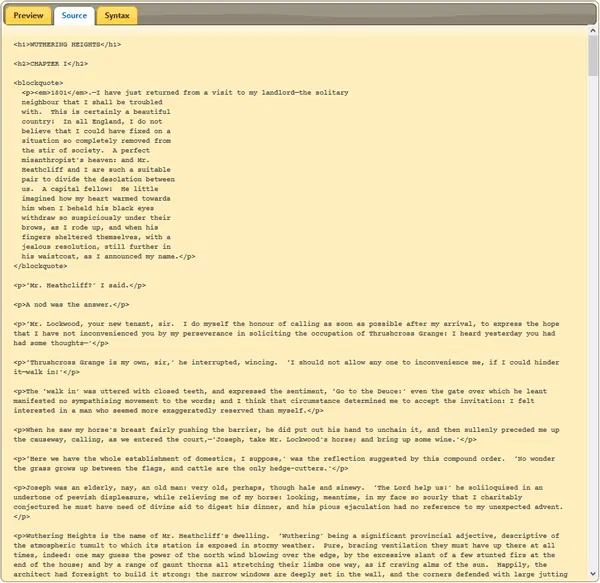
We noticed that while Backpager does what it sets out to do perfectly, it may not satisfy those with more in-depth needs; settings cannot be adjusted, and there is no way to save the text directly. It must be copied to the clipboard, then saved using another program, leaving the editor more suited to preparing a blog post than as a total writing environment.
2. Markable
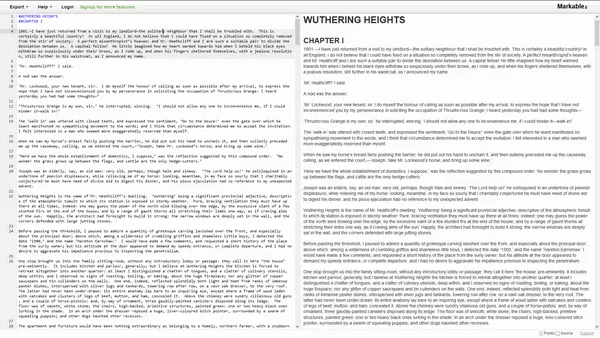
Markable offers a straightforward, simple UI that’s bound to appeal to many users, and the experience is only enriched further upon user sign-up, with new functionality being made available. If you’re not looking for a service to sign up to, this may not be ideal, although Markable features direct posting to Tumblr as well as a host of other features.
Pleasingly, you can at least save the file to HTML or Markdown, meaning it does not have to be saved using another application as with Backpager. However, we found significant slowdown in the live preview when pasting our sample text for this test into the editor: 10,133 words of Emily Bronte’s “Wuthering Heights”, as made available by Project Gutenberg, and there is still no dedicated options menu to tweak things to suit individual taste.
3. StackEdit
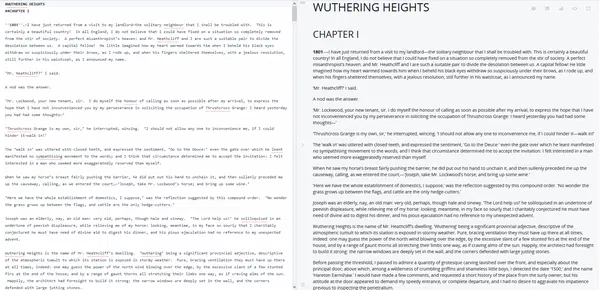
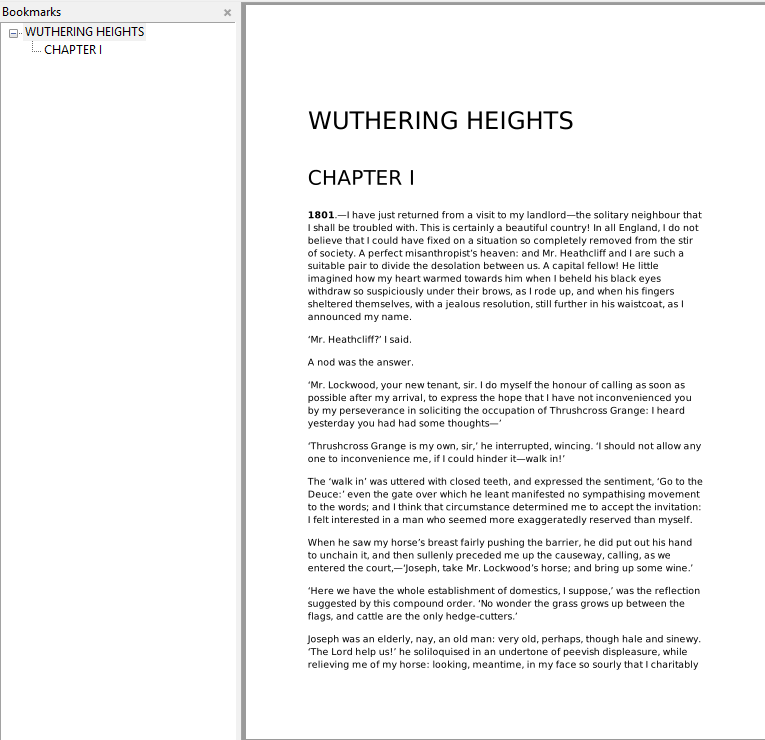
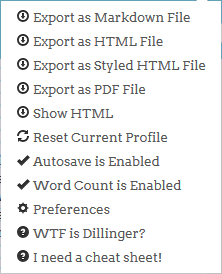
StackEdit exists in two formats at the time of writing: a complete version (referred to as StackEdit 3), and a beta version (StackEdit 4). The complete version boasts an incredible number of options, including pushing documents to Dropbox, Google Drive and Dropbox and statistics on document length. Excitingly, StackEdit also allows the document to be exported in additional file formats, including PDF: even dedicated Windows desktop applications do not all support this, and those that do frequently require a plugin such as Pandoc.
Despite the huge number of features offered in StackEdit, we noticed no significant slowdown despite the 10,000 words we pasted at once. Even the scrolling of the two panes remains surprisingly accurate, whether arranged horizontally or vertically.
4. StackEdit Beta
StackEdit Beta, despite the perceived instability of a beta application, provides a similarly impressive result as its predecessor. At first it is not easy to distinguish the two, though StackEdit 4 has a few revised elements, such as the dock at the bottom featuring document information. Again, performance was surprisingly smooth despite the length of the text added. Both versions of StackEdit also bring another tiny, though pleasant feature to the table: formatting in the Markdown pane is still displayed. While the syntax will wrap the affected text, it is also emboldened or italicized, as it would be in the preview. While most people would have no real need for this, we felt it a pleasant way to break up the monotony of long strings of text.

5. Dillinger
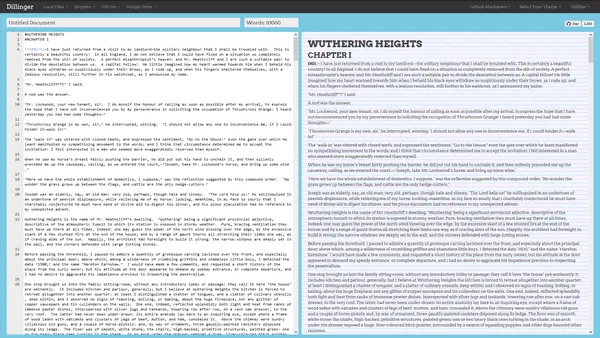
Dillinger is the last of the prominent Markdown editors that must be examined, and it is arguably the most well-known; it rarely appears as a lower result in any Google search. Like StackEdit, its greatest asset is its featureset. There are plenty of themes and options to select, reflecting Dillinger’s ambition to be the ultimate Markdown editor on the Internet. Like StackEdit, this means offering a few choices of Markdown syntax, including “GitHub Markdown”. That this is an option is hardly surprising; like StackEdit, Dillinger plugs into Google Drive, Dropbox and GitHub. No sign-up is necessary for Dillinger, though this can also be said of its closest competitors.
Conclusion
Dillinger and StackEdit prove to be our two top picks for online Markdown editing due to their quality design and feature-set. Choosing a definitive winner isn’t possible given their similarities, meaning that you may as well choose based on UI. We prefer StackEdit in this field, and noticed that StackEdit created a better PDF from our sample text, given the fact it featured chapter breaks for additional structuring. Neither is likely to cause you much trouble, and we feel confident that both should remain viable options for the foreseeable future.