Email is generally part of everyone’s daily routine. Most of the time our tasks for the day will depend on the contents of our email messages. So it’s not uncommon that some of us may associate our to-do lists with our email correspondence. You probably can’t count the times when you thought of something you needed to do upon receiving an email but end up forgetting it later.

If you use Gmail in Google Chrome, there’s a handy extension that allows you to see your Google Tasks along with your Gmail inbox. RightTasks for Gmail is a free Chrome extension that places a Google Tasks sidebar to the right of your Gmail page. This makes it easier for users to add tasks straight from their inbox.

First, you’ll have to download and install the extension from the Web Store.

Once installed, you may access your Gmail account from the browser. You should now see the Google Tasks sidebar load to the right.

To add an email message on to Tasks, open the email message and click on “More.” Select “Add To Tasks.” You can also use the keyboard shortcut “Ctrl + T” while viewing an email.
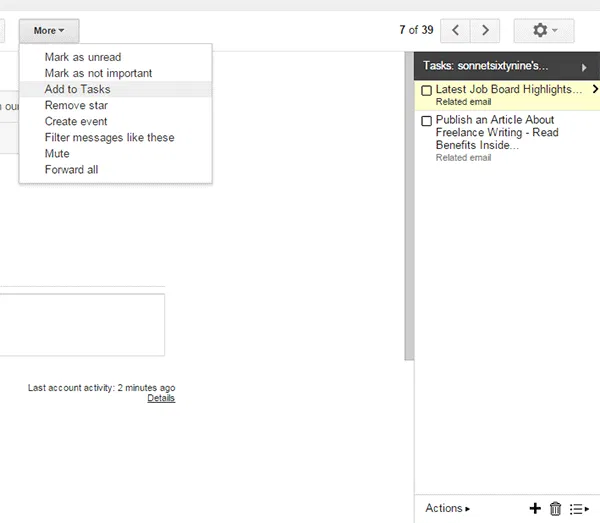
righttask_moreoptions

You should see the subject of the email message added on to your task lists on the right pane.

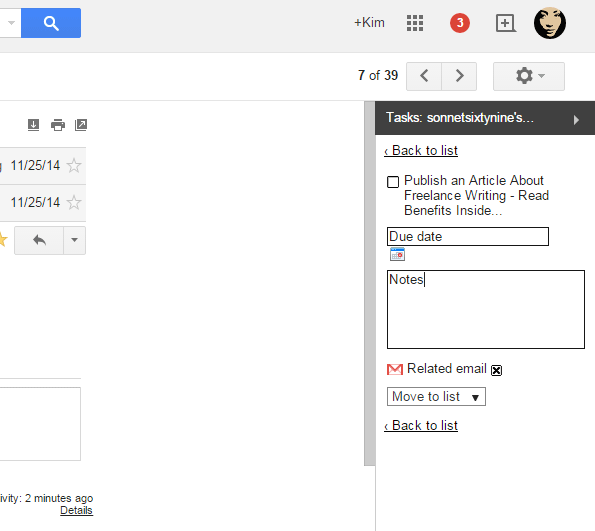
Furthermore, if you want to add a deadline or notes to a task, click on the “>” sign that appears to the right of the task.

Here, you can add a due date and any other notes you have for this specific task.
righttask_edit

There is also a link to the email message the task came from. Click on “Related Email” to view this.

You may also move the task to another list by using the drop-down menu below “Move to list.”

To go back to the main list of tasks, select “Back to list.”

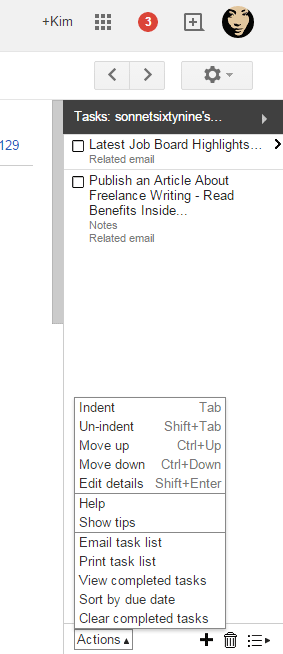
You can organize your tasks with the Actions button on the bottom of the sidebar. There are many options such as moving tasks up or down the list, clearing completed tasks or sorting tasks by due date.
righttask_actions

There is also an Add Task button and a Delete button on this area, which you can use as needed.

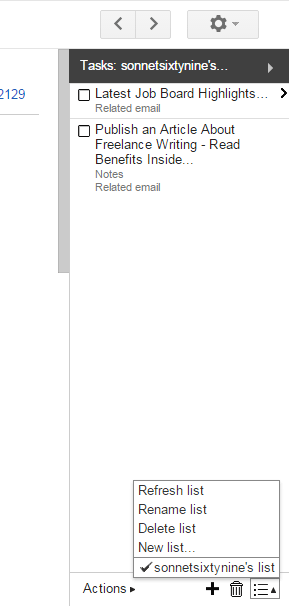
If you want to add, edit or delete the entire list, click on the List icon on the bottom right corner and select from the pop-up menu options.
righttask_editlists

Righttasks is a simple and straightforward way to viewing emails while building your to-do lists all in one go. It’s a huge timesaver and essential for those of you who usually schedule your day around email correspondence.

While the interface might need a bit of getting used to, it keeps the user focused on the key functions and not getting distracted by other unnecessary details. The sidebar doesn’t ruin the Gmail interface and should give any user enough space to work on emails as normal. For anyone who needs to remember a task based on emails, Righttask is an excellent tool that captures your tasks as soon as you get them.

Follow YouTube Channels Easily With YouTube Video Deck

There are approximately two bajillion videos on YouTube and staying up-to-date on a couple of channels could be difficult. YouTube Video Deck makes it easier and faster to follow YouTube channels.

4 Popular Bitcoin Alternatives and How They Compare to Bitcoin

The cryptocurrencies is here to stay. Bitcoin may be receiving the most attention at the moment, but it is definitely not the only one around. There are tons of Bitcoin alternatives. Here we will take a look at the 4 popular Bitcoin alternatives and see how they compare to Bitcoin.

Add Events to Google Calendar From Anywhere in the Web

One of the biggest complaints about Google Calendar is that you can’t add events to Google Calendar without visiting the site. With Spot – Calendar’s Best Friend, you will be able to add events to Google Calendar, whenever you come across one anywhere in the Web.

How to Create QR Code in Google Drive

There are tons of ways to create QR code. If you are a Google Drive user, here is one quick way to create R code in Google Document

What to Do When You’ve Been Hacked

As of late, many people have been hacked and are the victims of password leaks and Trojan horse infections. The following are some tips if it happens to you

How To Access Dropbox from Google Chrome

EasyDrop is an extension for Google Chrome that lets you access your Dropbox files from Google Chrome, without leaving your current tab.

Get Facebook Chat Heads in Google Chrome

Facebook chat heads is only available for Facebook Messenger app, but now you can use it in Google Chrome with the faces.im extension.

5 Mistakes That Every WordPress User Should Avoid Making

As we focus all our attention to post great content, we tend to make some mistakes on WordPress that can be fatal. Here are top 5 mistakes that every WordPress user should avoid making.

How to Get Rid of the Stickers in Comments on Facebook

Facebook added the sticker feature in its comments section. For those who dislike it, you can disable stickers in Facebook comments in Chrome and Firefox.

How Facebook Scammers Use Disasters to Make Money from You

Facebook scammers love to turn the misfortune of others into an opportunity to make a quick buck. Here are some of the techniques they use.

How to Submit WordPress Site for Bing Indexing

If you want to get your site indexed in Bing search results, here is how you can submit your WordPress site to Bing and have it index your site.

How to Add Emails to Google Tasks Within Gmail

If you use Gmail in Google Chrome, here’s a handy extension that allows you to see your Google Tasks along with your Gmail inbox.