Over the years, developers have found many different methods of storing a user’s settings and details: whether through an .ini file, the ability to export settings to a proprietary format, or a plain old-fashioned user account, they’ve all been used. The best example of a user account, or profile, is in Windows itself. Every time you log in, you’re using the name you’ve assigned for yourself to do so. While not many people realise this, Mozilla Firefox works on a similar principle with its profiles.
These profiles are also important since they can be moved from one browser to another. If you’ve read our round-up of different Firefox variants and tried our recommendation, Light, you’ll notice that it acts as if it is a brand new browser rather than a straightforward change.
Access Your Profiles
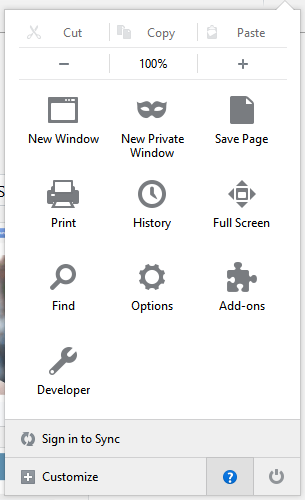
Firefox, by default, does not make it particularly easy to find your profiles. The latest versions go some way to changing this; if you have the menu button on the far right it is relatively uncomplicated. After clicking that menu button, you’ll see an option at the bottom which looks like a “?” symbol in a circle.
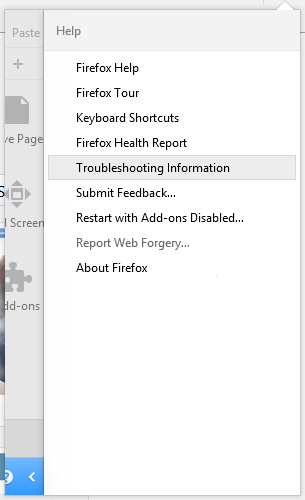
After clicking the question mark, a further menu will appear, and the option of importance is “Troubleshooting Information”. Once it is clicked, you should see another page load, consisting of numerous sections. Alternatively, if your version of Firefox has a different menu, you can reach this page by typing about:support in the address bar.
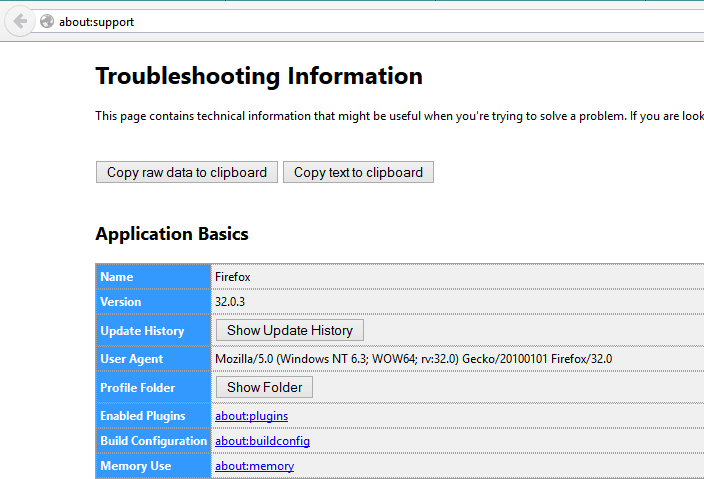
The support page has a section marked “Application Basics”; among the parts of the table is a button to Show Profiles. Click it and Windows Explorer will open up at the correct folder.
Transfer their Contents
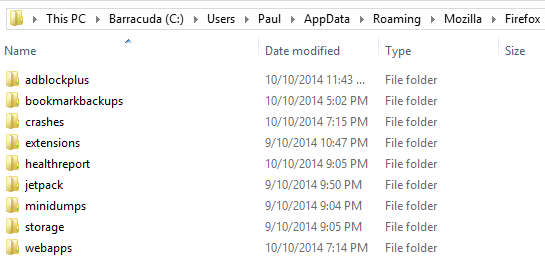
You can hold “Ctrl + A” at this point to highlight everything in the Profiles folder, then use “Ctrl + C” to copy it or “Ctrl + X” to cut it instead. Should you wish to be more selective with the elements you’re highlighting: for example, if you want only the bare essentials, you can use this sophisticated breakdown of the profile contents from the MozillaZine to help identify files.
Whether your intention is to select only some parts of the profile or to bring everything across, you can now close the Firefox window and open the browser you wish to transfer towards.
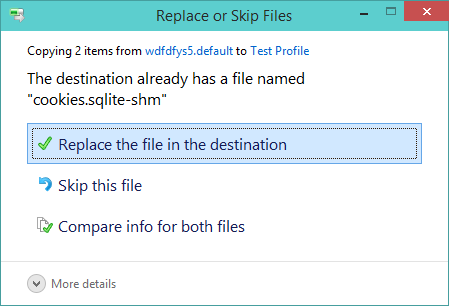
When in the new browser, repeat the same steps as above to reach its profile folder. Paste the contents of the Firefox profile folder into the new browser’s folder. This process may take some time depending on the size of your Firefox folder and the operating speed of your hard disk, as well as other factors. You may also be prompted to confirm the replacement of some files. No issue should arise with doing so, meaning you can confirm the replacements where necessary.
Confirm

In order to be totally sure that everything has transferred over, you can close your new browser for a moment and then re-open it. By now it should feel like you’re simply returning to the browser rather than running a new install, as all your old content will remain visible. Do be aware that transfer may not be extremely fast; Firefox profiles can grow very quickly.