In this busy day and age, it’s good to know there are many productivity apps that can help us become more efficient. Most apps on this list are cross-platform, but the way they make use of Google services makes them particularly handy as Chrome apps.
1. Trello
Trello is a popular tool often praised as one of the best productivity solutions for both personal and professional use. It translates the concept of a notice board into an app, letting you manage “Cards” (tasks) and sort them into different “Boards” (projects). You can attach labels, photos, notes and files to each card and directly create new cards and projects by sending an email to Trello. It supports Markdown formatting, too.
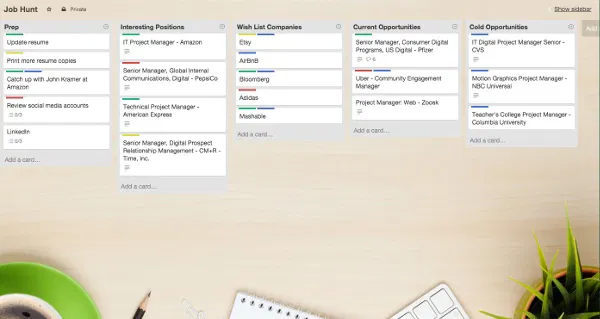
You can invite other users and allow them to access and modify your boards. When they make changes to a project, Trello will notify you. It’s also possible to group people into “Organizations” to keep professional contacts separated from friends and family. Trello offers a detailed online documentation, and you can extend its functionality by enabling Power-Ups, which include the option to prioritize selected tasks, “Card Aging” (visual reminders about old, unfinished tasks), and integration with Google Calendar.
2. Symphonical
Symphonical is the most versatile tool on this list because it supports multiple productivity systems at the same time. You start by creating a Wall – a container for your tasks. A Wall can be a simple week planner for your housework or a complex SCRUM workflow for your job. Walls can be private or public, and you can select the note style for each wall, add descriptions and choose team members who can access it.
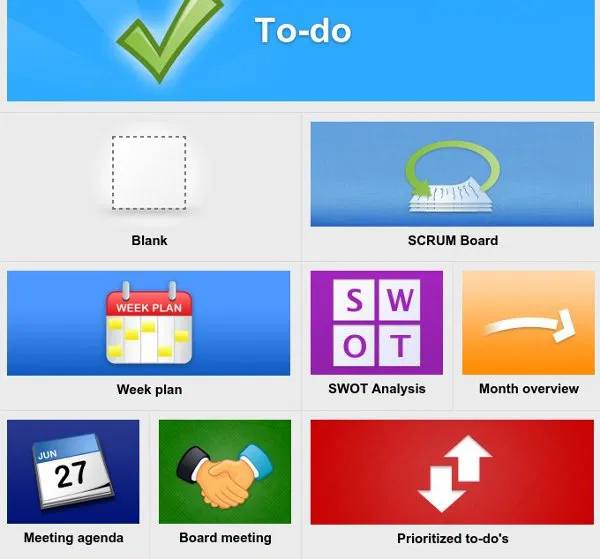
Integration with Google services means you can log into Symphonical with your Google account, then invite and directly communicate with other users. The list of team members is on the right, while the overview of your Walls is on the left side. The main area is in the middle, and here you can organize tasks by drag-and-drop, change categories, and add notes and attachments. Every wall can be exported, printed and archived using the menu on the right. Notifications are displayed below the menu.
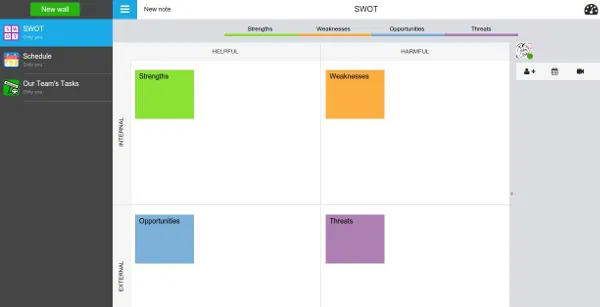
Symphonical offers several productivity methods, letting you choose the most suitable one for your project. You can opt for the Eisenhower Decision Principle, which divides tasks into four boxes (Important, Urgent, Not Important, Not Urgent), or the very similar ABC analysis. If you need something traditional and simple, Symphonical has you covered with standard calendars and prioritized to-do lists.
3. TickTick
TickTick is a relatively simple app perfect for people who enjoy crossing things off their list, even if that happens only virtually. It offers a left-to-right multiple-column workflow focused on deadlines. You can have multiple lists, tag and annotate tasks, and add subtasks. Every task has a due date, and you can set recurring tasks and reminders to never miss a deadline. Overdue tasks are automatically marked and placed on top of your list. Completed tasks can be archived, and new ones can be added directly from your Gmail inbox. While you can use it on Android and iOS, the Chrome version of TickTick offers the perk of offline access to all your data.
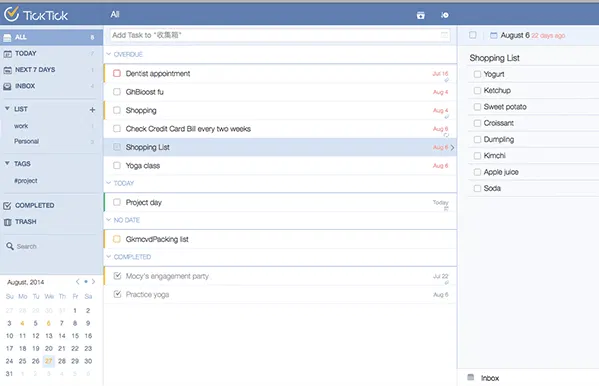
The best productivity system for TickTick is GTD (Getting Things Done), which is based on the idea of writing down tasks and organizing them into lists according to when they should be completed. Difficult projects are broken down into small, “actionable steps.” At the end of the week you’re supposed to reflect on your progress, push forward unfinished tasks and reassign priorities.
4. Droptask
If you consider yourself a “visual type”, try Droptask. Instead of boring to-dos and calendars, Droptask uses colorful circles to help you organize tasks into groups. They can be further categorized with tags and extended with subtasks and checklists. The free version lets you create five projects and add one teammate to each project.
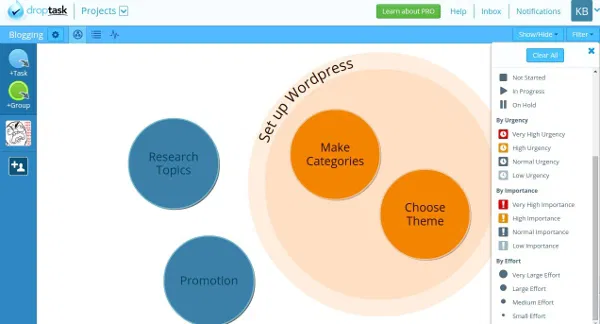
In case you don’t like the default interface, switch to Activity View where you can track progress and set parameters like urgency, importance and effort for each task. Gmail integration makes it easy to receive notifications, summary emails and reports about overdue tasks. Droptask will also work well with Google Calendar.
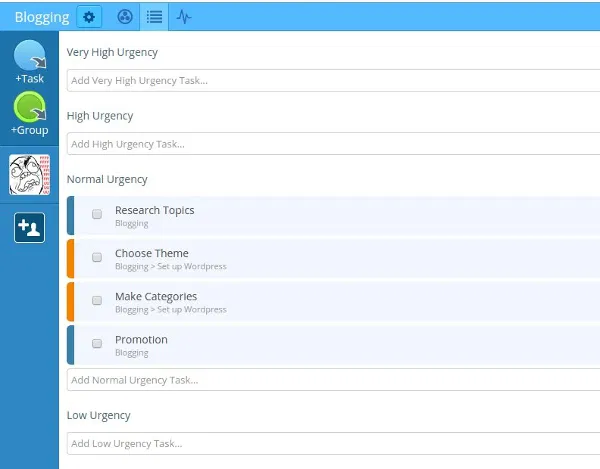
Droptask’s approach is reminiscent of mind maps, a popular way to organize knowledge by drawing ideas and keywords in colorful shapes and connecting them to create meaningful contexts. This is supposed to help you remember new information and improve the understanding of new concepts.
5. Week Plan
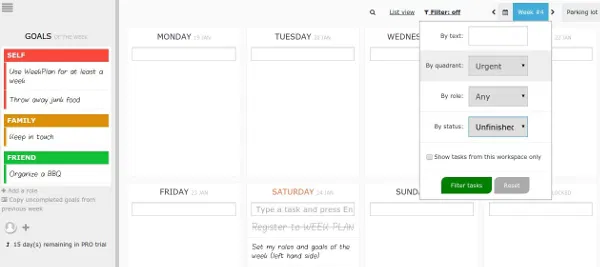
Week Plan seems like an ordinary calendar, but it offers several features that make it unique. It understands that people are complex beings and lets you divide your tasks by different “roles” in which you perform them – as a family member, a friend or a volunteer. Afterwards, you set goals for each week and state their importance and due date. You can see all your tasks in the main timetable and access options and settings from the sidebar menu on the left.
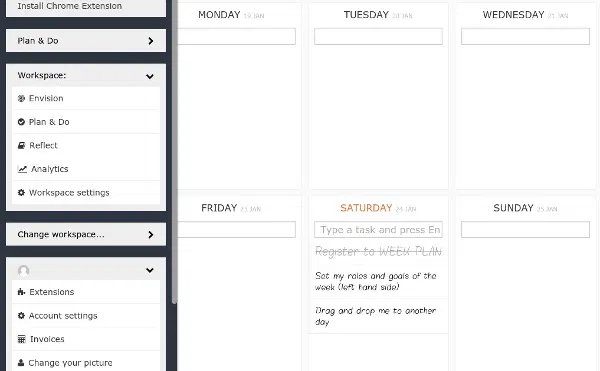
Your schedule can be shared with other users for easier collaboration. You can also add new tasks by email, participate in discussions about tasks and delegate them to co-workers. The “Analytics” view is great for statistics and time tracking. For introspection, use the “Vision Tracker” that guides you through task planning with prompts about life values, long-term goals, achievements and your mission statement. Week Plan lets you export all data in CSV format, transfer your schedule to Google Calendar and print the timetable. Note that it will automatically sign you up for a trial Pro version when you log in at the Week Plan website.
Which productivity method works best for you? Do you rely on plain old pen and paper, or do you use productivity apps? Tell us in the comments.
Image credit: Teaser image source