One of the many security worries when using the Internet is clicking on a virus-leading link. There’s not much one can do until it’s too late, and the preventive measures for these kinds of attacks are either not known or ignored by most Web users.
If you frequent links but want to be sure that they are safe and virus-free, a handy Chrome extension called Dr. Web Link Checker can help you check links for viruses.
Dr. Web is an antivirus software, and this free extension checks links within a browser without necessarily installing the software. It uses the Dr. Web server that stores its virus databases when scanning for viruses from a specific web link.
Upon installing the extension, you will need to restart the browser.
Once restarted, you will notice a green spider icon on the top right corner of your browser. Clicking this will bring up the Dr. Web menu, but it doesn’t trigger the link checker function.
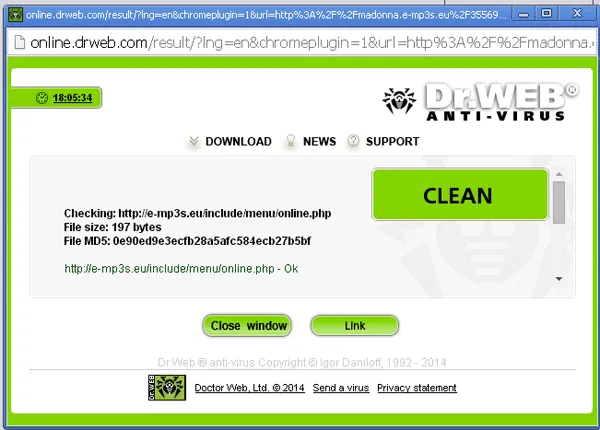
To scan a link for viruses, you need to use the context menu by right-clicking on the link and choosing “Scan with Dr. Web.” This opens a new dialog window where the scan results are shown. If there is no virus or threat detected, the results would show a big “Clean” badge.
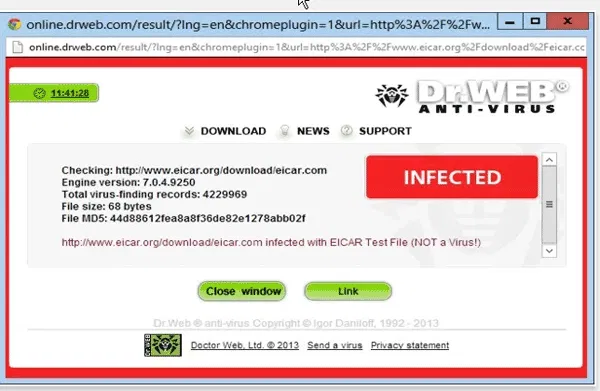
When there is a threat or virus detected, the scan will show the result with a red “Infected” badge on the upper right corner of the window. At this point, you would want to close the window and not open the link.
Another feature of this extension is checking links from social networking sites like Facebook, where bogus links abound. When clicking on an external website link, the extension warns you of this action through a pop-up.
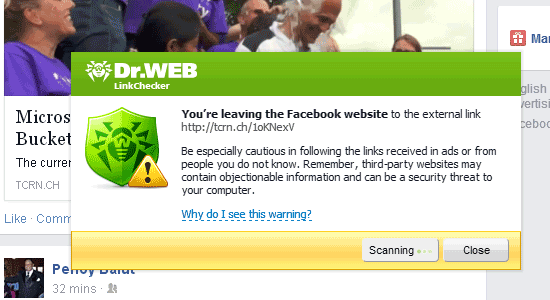
It will do a quick scan of the link, and if it’s safe, you can click on the “Go” button to proceed.
A few added functions include blocking analytics, social network plugins, and pop-up ads. You can enable or disable these settings by clicking on the spider icon on the top right corner of the browser.
You can also go to the Options page (click on the gear icon on the bottom right corner of the menu) to see all security options. This includes adjusting the level of protection from Low to High-Level.
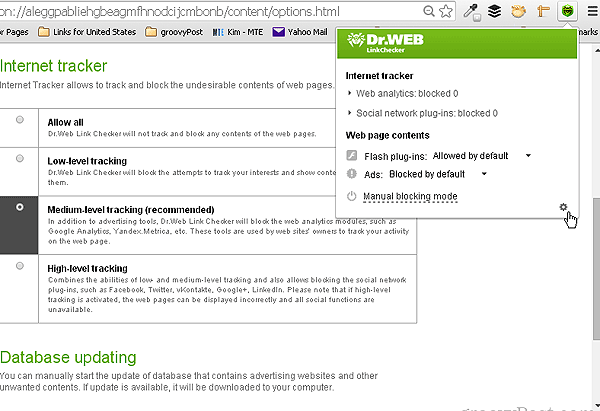
In this same page you can update the Dr. Web threats database to ensure that the latest threats and viruses are detected at all times. To update the database, click on “Update database” on the bottom of the Options page.
For every second that you use the web, there are new viruses and malicious codes that are made. It’s always better to have a preventive measure rather than deal with the consequences of a virus attack.
For any user who is keen to protect his privacy and data when browsing unfamiliar websites, this extension is extremely helpful. Not only is it a good practice, it also helps you become more aware of which websites are safe and which ones to avoid.