Google has been emphasizing the importance of mobile content over the past few years. If you are a webmaster, it is really important for your website to be mobile-friendly unless you are not concerned about the traffic coming from mobile devices, which could easily make up 30% of the overall traffic.
One important factor of the mobile device is its small screen (as compared to a desktop), which is why responsive web design has become a popular solution to make the website render well in various screen sizes. Another factor that has been overlooked by webmasters is the support for gestures. Most, if not all, mobile devices these days make extensive use of gesture actions (swipe, pinch, double tap, etc.) whereas most websites are still using the conventional mouse point and click way to navigate the site. In this article, I am going to show you how you can easily add gesture support to your WordPress site.
Tocca.js is a very simple javascript that can detect gesture action like “tap,” “double tap,” “swipe up,” “swipe down,” “swipe left.” Unless you are a developer, you won’t know what to do with it. This is where the Gestures plugin comes in. It makes use of the Tocca.js script and adds gesture support to your site.
Usage
1. Download Gestures from its Github page. Extract the archive and upload the folder to your WordPress plugins directory.
2. Activate the plugin in the Plugins section of WordPress.
3. Go to “Settings -> Gestures.” This is where you can configure the settings .
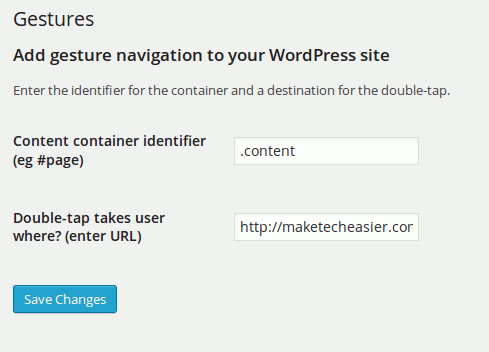
The “Content container identifier” field is the area on the site where you want the gesture to be activated. It is usually set to the main content div. For example, for our theme, the main content resides under the class="content" div, thus we will enter .content in the Content container identifier field.
For the next field, enter the URL where the user will be redirected to when they double tap on the site. This is usually set to the Home page of the site.
4. Once you are done, click “Save Changes.” That’s it. You can now load your site on your mobile and test out the swipe left/right action.
Things to note
1. The Gestures plugin depends on the prev/next tag on your theme header to work. Some themes are known to strip off these tags as they are not useful in most cases. WordPress SEO and several other plugins are also known to strip off these tags. If you can’t get Gestures to work, this is probably the reason.
One of the ways to tackle this is to add back the prev/next tag in your theme header. To do this, open up the functions.php file in your theme folder and add this line at the end.
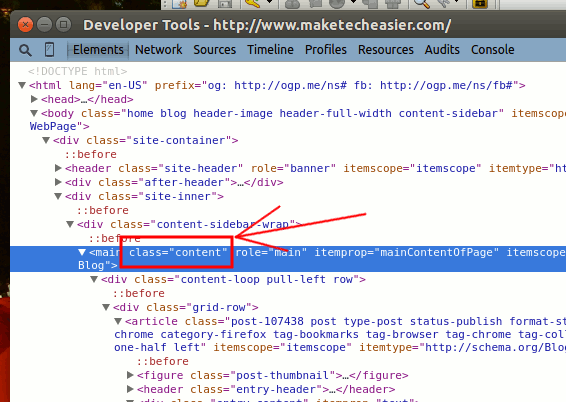
add_action( 'wp_head', 'adjacent_posts_rel_link_wp_head',50 );2. If you are not sure of the content container identifier for your theme, you can make use of the Developer Tools in Google Chrome to find the container div. In Google Chrome, right click on the main content area and select “Inspect Element.” The Inspector window will show up and highlight the current location where you click. Scroll upward to find its parent div. That will most probably be the container that you are looking for.
3. To test the gesture action on desktop, simply click and hold your mouse and drag left/right. This is equivalent to swiping left and right on the mobile.
That’s it. Try it out and let us know if this works for you.