As more and more people start surfing on their mobile devices, it is becoming pertinent for us – the webmasters – to make sure that our websites render well in the mobile browser. Responsive web design is probably the way to go, but still that requires a lot of testing to make sure it fits nicely in all devices and screen size. It is almost impossible to get ahold of all the mobile devices in the world, but with a nifty tool in Google Chrome’s developer tool, you can easily test your website in a large list of mobile devices (without spending a single dime).

The “Device Mode” emulation in Chrome’s Developer Tool is a useful tool for you to test your website on multiple mobile devices. As its name implies, it emulates the browser in various devices so you can see how your website renders in each browser.

To get started, open up Chrome and load the website you want to test. Press F12 (“Cmd + Opt + I” for Mac OS X) to open the Developer Tool. Alternatively, you can right click your mouse and select “Inspect Element”.
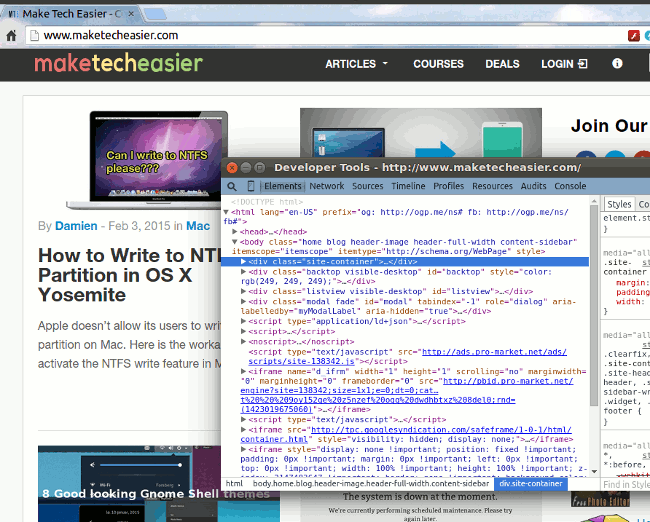
chrome-open-developer-tool

In the Developer Tool window, click the mobile icon at the top left corner.
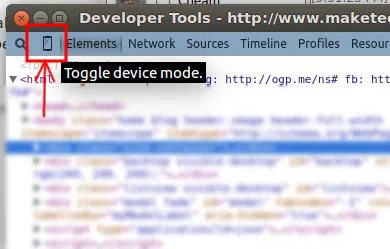
chrome-toggle-device-mode

Switch back to the main Chrome window and you should see the website changed to a grid mode.
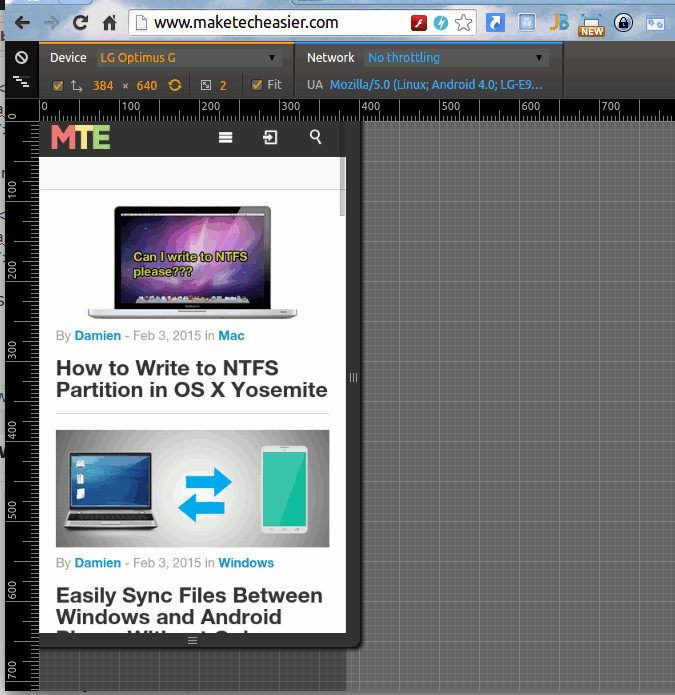
chrome-website-in-device-mode

Now, all you have to do is to select the mobile device in the “Device” dropdown list. The website will auto-resize itself to match the device’s screen size.

Scrolling through the device list, you can find some of the popular devices like iPhone 3GS, 4, 5, 6, 6 Plus, Samsung Galaxy Note, etc.
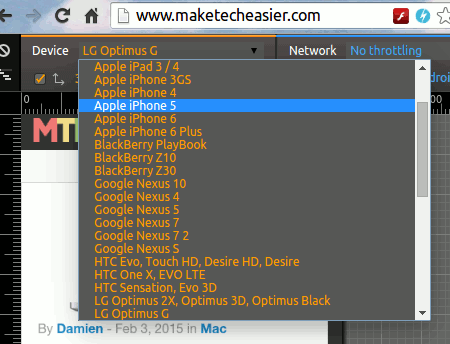
chrome-device-list-in-device-mode

Other things that you can test in the device mode include changing the screen resolution, setting the pixel ratio, changing the browser’s user agent, etc.

To exit the “device mode,” simply return to the Developer Tool window and click the mobile icon again, or simply close the Developer Tool window.

Conclusion

The developer tool in Google Chrome is a very powerful and useful tool for webmasters and developers to test and debug their websites. There is a similar tool in Firefox as well (in fact, most browsers come with a developer tool mode), but the one in Chrome comes with more features and is easier to use.

How to Configure The Tabbed Inbox In Gmail

Google has recently introduced the new tabbed inbox in Gmail which will auto-sort your emails into various tabs and help you to be more productive. This new tabbed inbox interface is not activated by default. This article will show you how you can activate and configure the tabbed inbox in Gmail.

Add Events to Google Calendar From Anywhere in the Web

One of the biggest complaints about Google Calendar is that you can’t add events to Google Calendar without visiting the site. With Spot – Calendar’s Best Friend, you will be able to add events to Google Calendar, whenever you come across one anywhere in the Web.

How to Enable Two-Step Verification for Evernote

Add an extra layer of protection to your Evernote account by enabling two-step verification. A code will be sent to your mobile phone whenever you log in.

How to Enable Two-Factor Authentication in Buffer

Buffer has added a new 2-Step Login security feature to their web app. This tutorial will show you how to enable two-factor authentication in Buffer.

The Easiest Way to Automatically Open Websites in Incognito Mode [Chrome]

Are there websites that you only want to view in Incognito Mode? The Incognito-Filter Chrome extension will let you do that in a snap.

How Does ICANN’s Relationship with the US Affect You?

You’ve probably heard on the news something about ICANN and its “cozy relationship with the United States.” So how does that affect both you and me?

What Is the OpenSSL Heartbleed Bug and Why Should You Care?

Things just don’t work the way they should in the Internet. Here are some things you should know about the OpenSSL “Heartbleed” bug and how it affects you.

What is Password Hashing (and How Does It Work)?

If there was a breach and your encrypted password was leaked. Is your account at risk? Read on to find out how password hashing work and how it affects you.

Can People Really Spy on Your Webcam?

There were news that the FBI was able to spy on people’s webcams without them knowing. How is this possible? Let find out how this hack was done.

Three Ways To Educate Yourself Right Now About Internet Censorship

The Internet isn’t free, as much as you like it to be. This article examines 3 of the best online resources where you can learn about Internet censorship.

Why Websites Go Down, And What They Do About It

Have you ever wondered what large companies do to ensure that their websites stay up, and why websites sometimes go belly-up for a few hours? It’s time to speak about both of these things!

5 Chrome Apps to Maximize Your Productivity

There are many productivity apps that can help us become more efficient. The following apps make use of Google services and are particularly handy as Chrome apps. Check them out.