There are lots of web apps and browser tools that make surfing the web quicker and more efficient. When it comes to links, I always find it more convenient to open them in new tabs, that way I can keep the original page (where the link came from) still open in case I need to refer back to it. However, a tool called LinkClump might just change all that.

LinkClump is a Chrome extension that allows the user to open two or more links in one go.

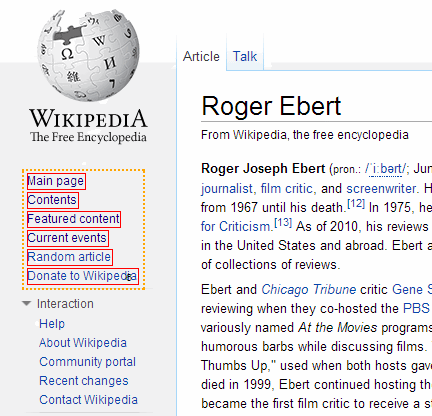
After downloading the extension, you can now use LinkClump to open multiple URL links. To do this, you’ll need to hold down the right mouse button, then draw a box around the links you want opened.
linkclump-select

A tiny number appears on the bottom right corner of the selection box to indicate how many links will be opened.

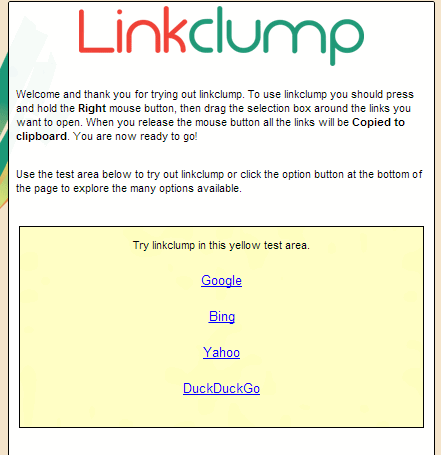
As soon as you release the mouse button, all selected links will open at the same time. As a default, the links open in new tabs, but you can change this (and other controls) in the extension’s Settings page. You can also find a short guide in this page.
linkclump-guide

After highlighting the links, you should now see these links open in a new tab within the same browser window.

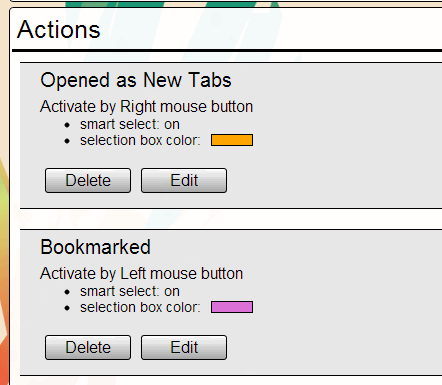
To access the extension’s Settings page, click on Chrome’s control icon located on the top right corner of the browser then go to “Settings -> Extensions”. You should see the options window as shown below. To start changing settings, click on Edit under the Actions section.
linkclump-actions

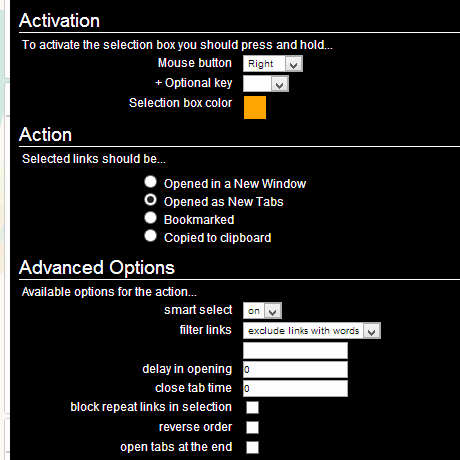
Here, you can change controls such as using the middle or left mouse buttons to activate selection, or opening links in a new window instead of in a new tab. You can even customize the highlight color used.
linkclump-edit

LinkClump does more than just open multiple links. It can also save links as bookmarks or copy them to the clipboard. To do this, you’ll need to go the Settings page again and create a new action by clicking on Add Action. Here, you can assign other mouse buttons and different colors for a new action. Under the Actions section, you can choose Bookmarked or Copied to clipboard.

Remember that activation buttons cannot be the same for two different actions. If you entered a choice which is already being used, then you’ll be prompted to pick another one.

Bookmarked links will appear in Other bookmarks>LinkClump. Bookmarks are grouped in folders so it’s easier to track them.

Links that are copied to clipboard will appear as the full URL address of each link in plain text.

You can also apply filters in opening links. Under Advanced Options, you can specify a word that will exclude or include a link to be opened.

Lastly, you can also disable LinkClump for certain websites. You’ll need to enter the sites under the Blacklists section in the Settings page.

This extension is extremely useful to those who need to open lots of links at any given website. If you’re looking for a fast, efficient way to open links in the fastest way possible, then LinkClump might just help you with that.

How to Access Blocked Websites From Overseas

Many popular websites are only available for specific countries. If you really need to access the content of the blocked websites, here are some methods you could try.

Temporarily Suspend a Tab in Chrome to Free Up System Memory

Do you often open a lot of tabs in Google Chrome, just to leave most of them untouched for hours? One way to prevent it from eating away your computer’s memory is to suspend the tab until you’re ready to use it. Here’s how to do so.

Edit Google Drive Videos Inside Chrome With WeVideo

What if you left your laptop at home and there is an urgent need to edit a video that you saved in Google Drive? Thankfully you can make use of WeVideo to edit the video directly in Google Drive.

Setup Your Own Self-Hosted Survey Application and Create Unlimited Survey Forms

While there are tons of tools and services that you use to create survey forms and conduct surveys, If you wish to have full control over your data, LimeSurvey is a good survey application that you can install on your own server and host your own surveys.

How to Delete a URL From Chrome’s Omnibox Suggestions

If you entered a wrong URL in Chrome’s omnibar, it will continue to show up in the suggestion, which can be rather annoying. Here is a quick way to delete a URL from the Chrome omnibar.

Get the Black Google Menu Bar Back with this Chrome Extension

Don’t like the new Google App Launcher? Want to get the old black Google menu bar back at the top of Google websites? Here’s how to do that in Chrome.

Light – A Lightweight and Speedy Firefox Alternative

Light is a lightweight browser built with speed in mind and is ideal for old machines. It is a Firefox alternative with several non-essential features removed.

Pushbullet: Push Links and Files From Chrome or Firefox to Your Android Device

Sending content from desktop to Android is not as easy as it seems. An extension called Pushbullet for Google Chrome and Firefox makes this task easier.

Use History Eraser to Quickly Wipe Your History in Chrome

Are you worrying about your privacy when surfing the web? History Eraser can clean up your Chrome browsing history with a single click. Check it out here.

The Best Markdown Editor for Web

There are numerous tools for writing in Markdown via the web. We’ll be taking a look at some of the best markdown editor for web. Read on for more detail.

How to Transfer the Contents of User Profiles in Firefox

If you are trying out a new Firefox-based browser, you can transfer the content of your old user profiles so all your items are intact. Here’s how to do it.

4 Must-Have Chrome Extensions for YouTube Enthusiasts

If you are a Youtube enthusiasts, as well as a Chrome user, here are some of the best Chrome extensions for YouTube to improve your video watching experience.