Researching on the Internet can sometimes be cumbersome, and the amount of information we find can be a challenge to organize. There are many note-taking and clipping apps out there, but a Firefox extension called Save Text To File performs a simple, yet extremely useful, function: to save highlighted text in any web page into a .txt file, then save it in any location on your hard drive.

To save highlighted text in Firefox, download the Save Text to File extension and start using the feature right away. Highlight the text you want to save and right click on it.

Click on the option Save Text To File. This should bring up the extension’s menu with all of its options.
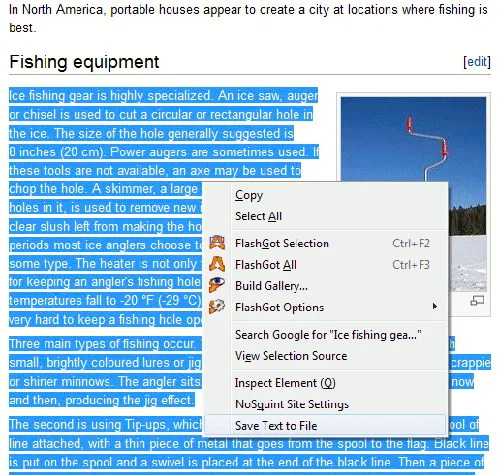
save text to file

First you can rename the file (the default is set to Highlighted Text). This is a must if you’re planning to save multiple files this way. In the example below, I renamed the file to “Ice Fishing” which is the main topic of my research.
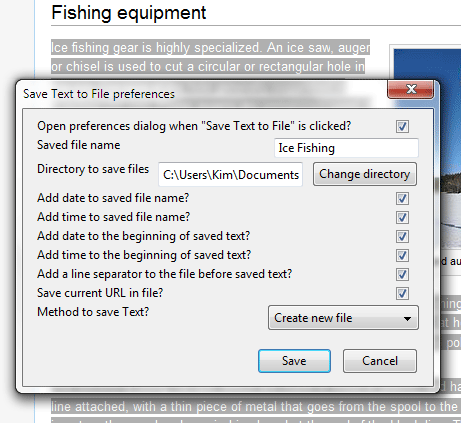
save to text menu

The next option is to specify the directory where you want to save the file. This can be anywhere on your hard drive.

The next few options are for inserting additional information about the file such as date, the source URL and whether or not to add this in the beginning of the text. You can decide which one works best for you, but if you’d rather just save the text, then you’ll need to uncheck the boxes to disable all or any of these.

The last option is the saving method: this asks whether you want to create a new file or append it to an existing file. Unfortunately, the append feature did not seem to work. This appears to be the same for other users, as I’ve come to know from reading the comments in the Add-on’s Firefox page. As a workaround, you can choose to add the date and time to the saved file name so you’ll know which file was most recently saved and therefore has the added information.
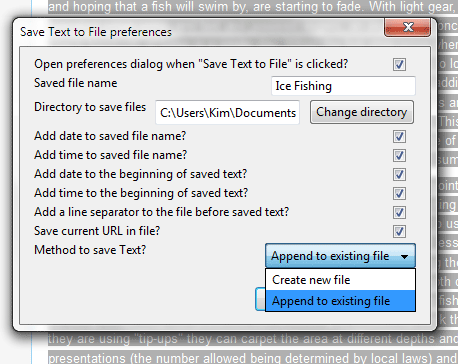
save text to file append

When you have all settings in place, click on Save. A pop-up on top of the browser window should appear indicating where the file was saved and the actual file name. You can close this by clicking on the x mark to the right.
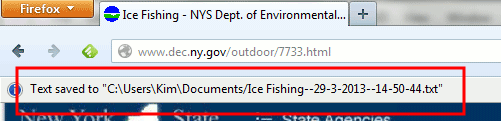
save-text-to-file-pop-up

Remember that the saved file is in the .txt format, so any word processor or note-taking software should be able to open it. You can use Notepad or Microsoft Word in Windows. In MS Word, you’ll need to specify to open All Files in the Open File dialog box so that the file is visible in the list. A saved text file (with all options checked) will look like this in Word:
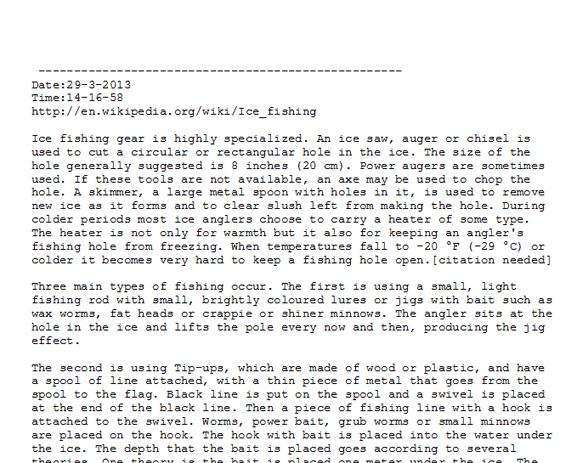
save text to file text in ms word

Save Text To File is great if you want a quick and easy way to save highlighted text into a file. It obviously has a few bugs (unable to append to existing file), but it’s a good start if you want something that will help you gather information for important pieces of writing that you might be doing.

How To Save Highlighted Text in Firefox Into a File

Researching on the Internet can sometimes be cumbersome. The Save Text To File extension for Firefox allows you to save highlighted text in any web page into a .txt file, then save it in any location on your hard drive.

The Complete Guide to Avoid Scams on Craigslist

Craigslist is a popular place for people to buy and sell stuff. It is also a good hangout for fraudster to scam the user. This guide will teach you how to avoid scams on Craigslist.

Setup Your Own Self-Hosted Survey Application and Create Unlimited Survey Forms

While there are tons of tools and services that you use to create survey forms and conduct surveys, If you wish to have full control over your data, LimeSurvey is a good survey application that you can install on your own server and host your own surveys.

4 Things You Should Know About Digital Cryptocurrencies (Bitcoin, Litecoin, PPCoin, Etc.)

The Internet has entered a new era in which people can start trading in currencies that are not run by governments, called cryptocurrencies. If you have heard all the hype and wanted to get involved, it’s best that you find out more before investing in digital cryptocurrencies.

How to Encrypt Your Gmail Message and Protect Your Privacy

If you are really concern about the privacy of your email, you should really consider encrypt your Gmail message so even Google can’t view it.

Get the Black Google Menu Bar Back with this Chrome Extension

Don’t like the new Google App Launcher? Want to get the old black Google menu bar back at the top of Google websites? Here’s how to do that in Chrome.

Is Your Email Provider Leaking Your IP Address to Recipients? Here’s How to Find Out

If you care about your privacy, you need to make sure that your email provider is not leaking your IP address to recipients. Here’s the tool for the job!

How to Fix Chrome’s Extension Security Problems

Some of the extensions in Chrome store are using hidden adware to make money off of you. Here are some fixes for you to tackle the extension security problems.

Everything You Need to Know About The “Rosetta” Flash Exploit

You are probably not aware that Flash has an “Rosetta” exploit. Here is what you need to know about Rosetta Flash exploit and what you can do about it.

Why Am I Not Getting My Full Internet Speed on Fiber?

Despite the fact that fiber is amazingly fast, it’s not necessarily delivering the Internet speed it promises. Check out the reasons why is this so.

How To Download Multiple Files By Selecting Links In Chrome

uSelect for Chrome lets you select multiple links and provides you the option to either open the links or download them.

4 Big Questions About Elon Musk’s Satellite Internet Plan Answered

A network in space to provide internet access throughout the world sounds good, but is it feasible? Here are the answers to some of the major questions asked.