One of the many features in modern browsers is the inclusion of a password manager that helps us to manage our password. If you have noticed, when you log in to any website, the browser will ask if you want to save your password. If you have saved your passwords in the browser and want to view and delete them later, this article will take you through the steps to manage your saved passwords (view and delete saved passwords).
Manage Saved Passwords in Google Chrome
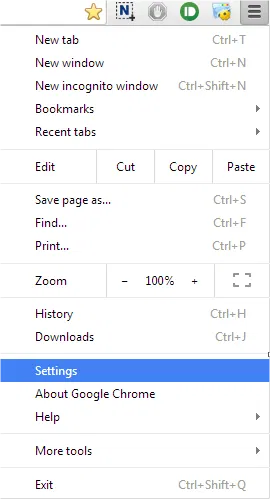
Open Google Chrome and type chrome://settings in the address bar. Alternatively, you can click on the “Customize and control Google Chrome” button and then on “Settings”.
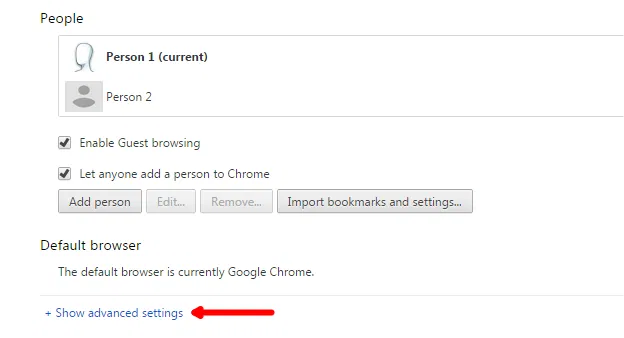
Scroll down to the end and then click on the link “Show advanced settings”.
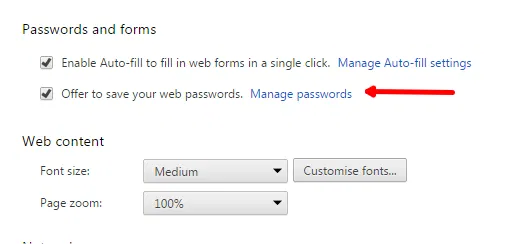
Scroll down a bit to see the “Passwords and forms” section. Click on the “Manage passwords” link to manage saved passwords.
A popup kind of window will be opened which has all the websites with your saved passwords. For security reasons, saved passwords are not displayed. You can view the password by clicking on the “Show” button. If you want to delete the saved password, click on the cross (x) mark beside the show button.
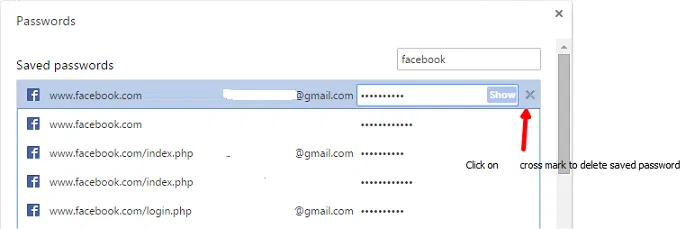
You can even search for the particular website to remove the saved password of that website. It is easy to manage saved passwords in Google Chrome web browser with these simple steps.
Manage Saved Passwords in Mozilla Firefox
In the top right corner, click on the menu button and then click on “Options.”
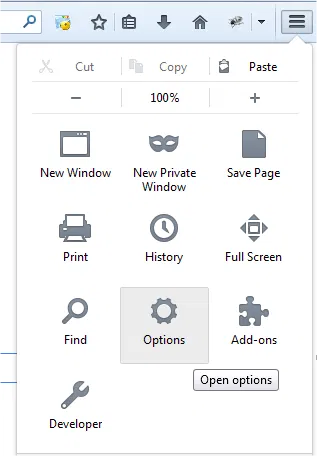
The Options dialog box comes up with various options to view and edit. Click on the “Security” section and then click on the “saved passwords” button.
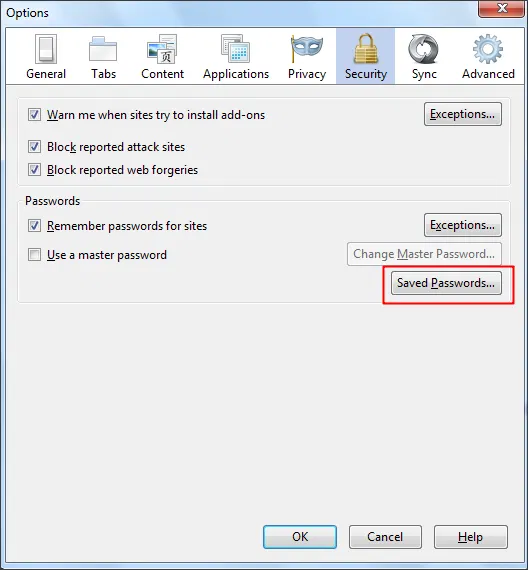
The “Saved Passwords” window opens and shows all websites with saved passwords. Those passwords are hidden by default, and you can click on the “Show Passwords” button at the bottom to view all saved passwords. If you want to remove a saved password of any website, select the website from the list and click on the “Remove” button at the bottom left.
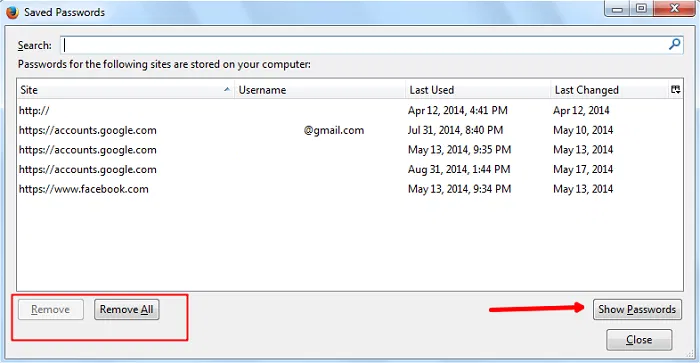
If you want to remove all saved passwords at once, then click on the “Remove All” button at the bottom. You can search for a specific website and can delete the saved password of that particular website.
Manage Saved Passwords in Internet Explorer
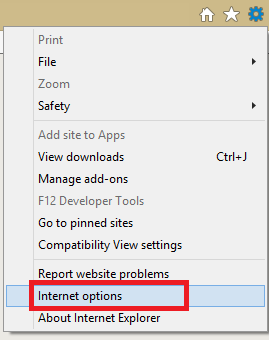
Open the Internet Explorer web browser and click on the cog button in the top right corner. Select “Internet options” from the list.
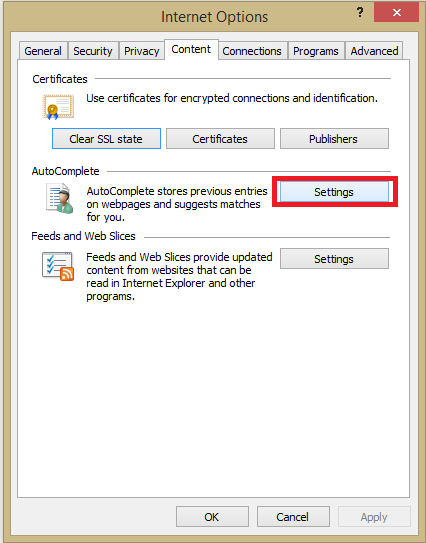
Go to the “Content” tab. Click on the “Settings” button in the “AutoComplete” section.
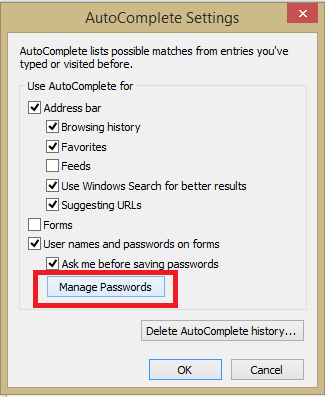
It opens the “AutoComplete Settings” dialog box. Click on the “Manage Passwords” button at the bottom.
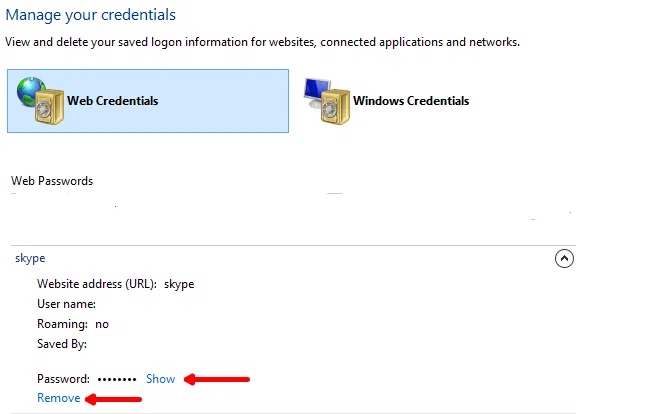
Under the Web Credential section, you will find all your saved passwords. Click on the expand icon to view the saved password. Click on “Remove” to delete the saved password.
Conclusion
These are simple steps to manage saved passwords in Google Chrome, Mozilla Firefox and Internet Explorer. Using these steps, you can view and delete those saved passwords. You can get back to saved passwords section anytime, if you forgot the login credentials of any website, but it is always advised to clear or delete saved passwords from the security point of view.
How do you manage saved passwords in your browser? If you want to add anything more, please do share with us through comments.