If you have been surfing the web regularly, I am sure you have come across websites showing error codes like 404, 502, etc. These error codes are kind of cryptic and doesn’t make any sense unless you know the exact meaning of the displayed error code or message. Getting to know the common browser error messages will help you to troubleshoot your Internet connection for any potential problems. In this quick article, let us get to know some of the most common browser errors that you will stumble upon from time to time.
Page Not Found (404)
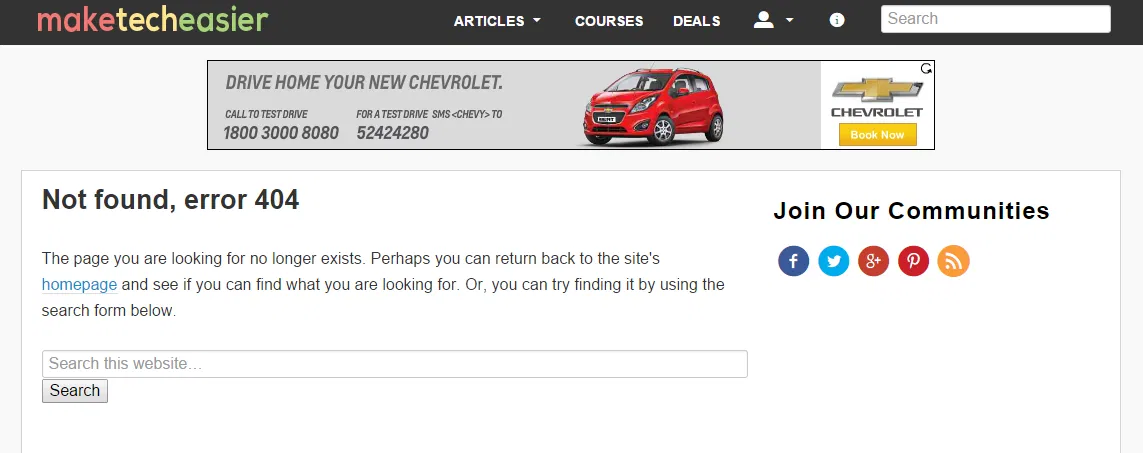
Page Not Found or the 404 error is one of the most common errors your can find when you are browsing the Internet. This error simply means that your browser is able to communicate with the website or the server you are trying to connect to, but the server or website could not find what you are looking for thus responding with a 404 error. The are many reasons like broken links, deleted or moved content, etc., behind the 404 error. But the good thing is that the error page can be easily customized in many different ways by the respective web designer or the server admin enabling them to provide alternative options to the users.
Bad Gateway (502)
The Bad Gateway error is not so common, but whenever you receive this error, it just means that while attempting to fulfill your request, the server which is acting as a gateway has received an invalid response from the upstream server. Most of the time, the problem is outside your computer and the error is generated due to the problems in the servers, and there is nothing much you can do to solve this problem. But sometimes invalid cookies or cache may also cause 502 errors in which case you need to clean your browser to access that server or website.
Service Unavailable (503)
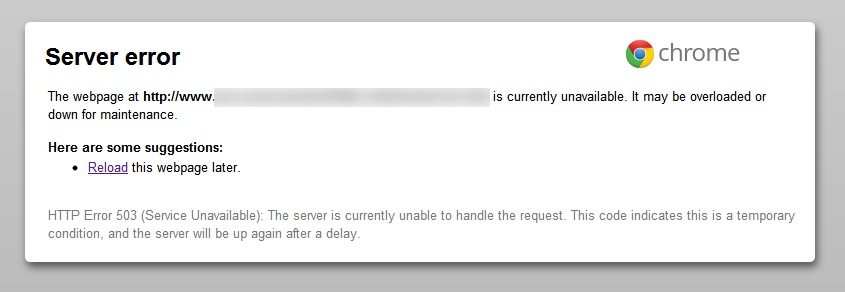
The 503 Service Unavailable error message appears whenever the website you are trying to reach is down at the current time, but the server itself is responding to the requests with an error message. Since the error is outside your computer, there is not much you can do in order to get access to the server or the website. However, in rare cases, you may receive an error like “Service Unavailable – DNS Failure.” The reason for this might be an issue with your router or with the DNS service itself. In those cases, consider restarting your router or change the DNS services you are using to resolve the issue.
Connection Timed Out
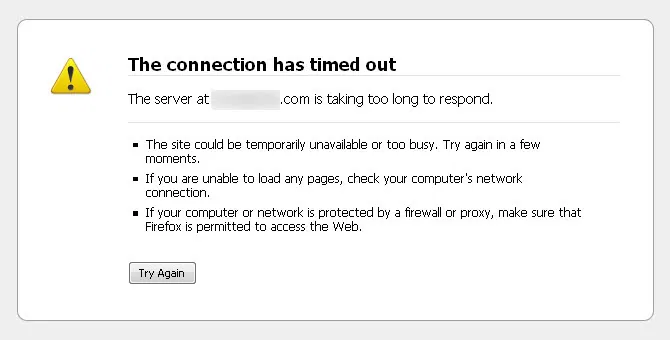
The Connection Timed Out Error simply means that the request sent by your computer isn’t being fulfilled within the predetermined timeframe. The reasons for this type of error may be that the actual server or computer you are trying to access is not responding as it should, your router is misconfigured, or there is a network problem with your connection. Since the Connection Timed Out error doesn’t give any other additional information to pinpoint the issue, try accessing other websites. If you can access them, then the problem may be with the website or the server you are visiting. If you cannot access the whole Internet, then it might be a network problem, in which case you need troubleshoot your router or contact your ISP.
Unable to Connect
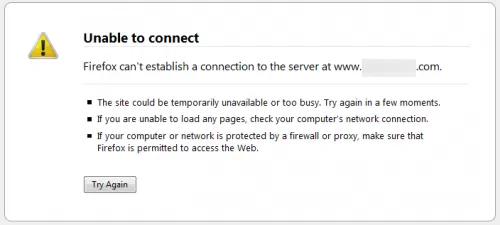
Unable to Connect means that your web browser is not able to fulfill your request due to the target server or website being currently not available for whatever reason or is experiencing technical problems. Sometimes, you may have misconfigured your firewall or proxy which in turn is blocking you from accessing the website. In those cases try disabling your firewall or changing the proxy settings (if you are using one). If you want to know if the website is really down, you can use services like Is Up.
Server Not Found error is quite similar to Unable to Connect error, but it means that the server or website you are trying to access simply does not exist. This error may also occur when your DNS server is down or due to the typos in the URL you entered.
Phishing or Malicious Content Warnings
Phishing and malicious content warnings are some of the best things about the modern browser as they protect you from falling prey to the Internet scams. Whenever your browser displays a phishing warning, it means that the website you are visiting is not what you think it is and is just faking to be the original site. Crackers usually use these phishing techniques to steal your passwords and other important information. In those cases, quit clicking on the links displayed on the web or in the emails and manually enter the website URL to be sure.
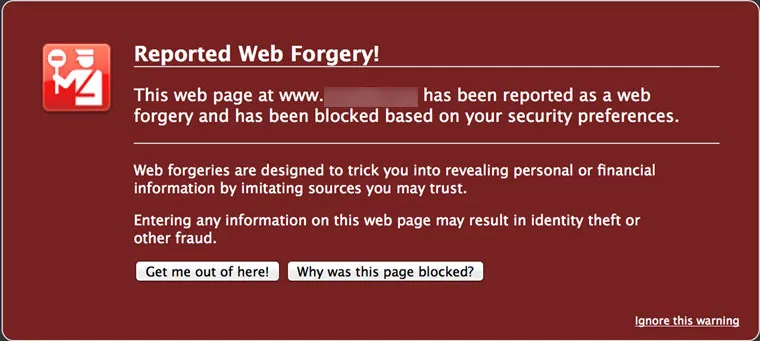
If your browser is displaying a malicious content warning, then it means that the website you are visiting may be infected with or is hosting a virus or other malicious content. Since this malicious content is sometimes capable of infecting your computer, it is deemed dangerous, and you should avoid accessing that site until the website owner has cleaned it.
Certificate Warnings
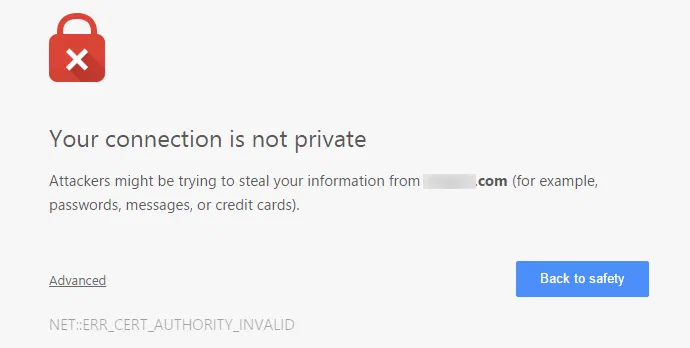
Certificate errors are displayed whenever your browser cannot verify the real owner of the website using the SSL certificate that is being used by that website. If you ever encounter this type of error, it is always recommended that you stay away from that site, as the connection to that site may be compromised which in turn leads to identity theft. However, certificate errors may also occur whenever a website is using a shared SSL certificate or self-signed SSL certificate. So unless you trust the website that you are visiting, never proceed with a website that has certificate errors.
That’s all for now, and hopefully this gives you a better idea of what the displayed errors in your browser actually mean. Do comment below sharing your thoughts and experiences regarding the specific browser errors.