Did you know that when you visit a site in your browser, it will leave a trace in your browser’s history? It could be the cookie, cache, or simply a URL history that allows you to quickly locate the site when you type in the URL bar later. Some advanced sites even make use of your local storage to store some heavyweight content so they will load faster the next time you visit the site. The problems with this is that they leave a trace of your presence on the Internet, and it doesn’t take care of your privacy.
History Eraser is an extension for Chrome that allows you to quickly clean up your browser with a single click. Other than cleaning the simple cookie, cache and URL history, it will take care of your saved passwords, local storage, indexed database, etc. This is much more useful than the default cleanup feature in Chrome’s settings.
Installation
To get started, install History Eraser from the Chrome Store. It will open another tab and show you the installation progress. It will prompt you to install “History Eraser App” and “Click and Clean” during the installation process. They are not required for it to work. You can safely ignore them or remove them if you have accidentally installed them.
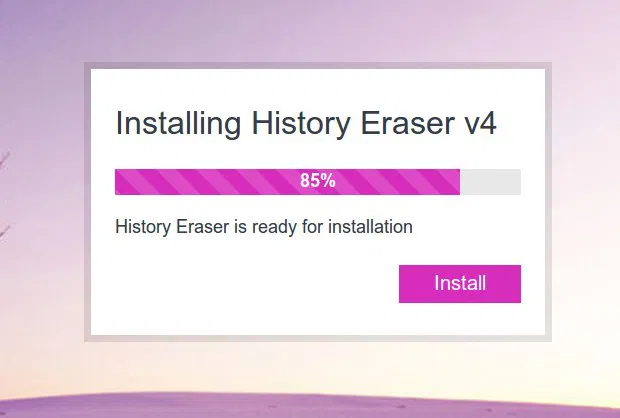
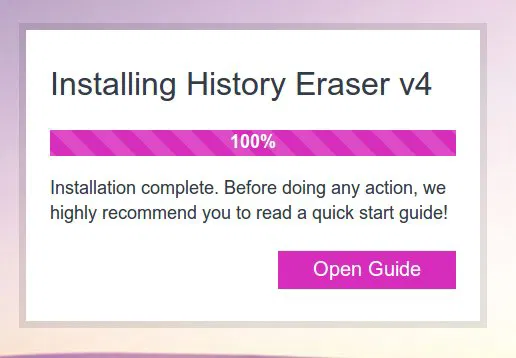
Once you are done with the installation, you can click the “Open Guide” button to read the tutorial.
You should be able to find a new History Eraser icon in your toolbar now.
Usage
Click on the History Eraser icon. This will bring up a window of cleaning options. Here you can select the stuff you want to purge from your Chrome browser.
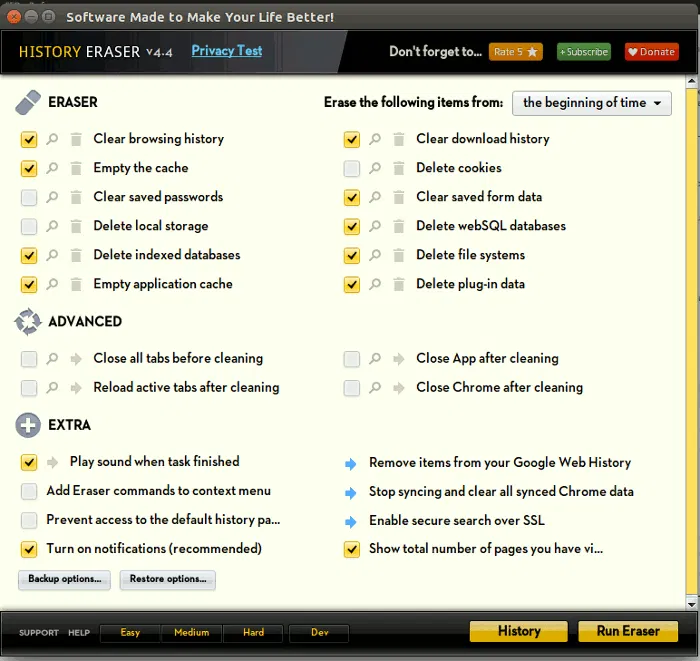
Options include:
- clear browsing history
- delete cache
- clear saved passwords
- delete local storage
- delete indexed databases
- empty application cache
- delete cookies
- clear download history
- clear saved form data
- delete webSQL databases
- delete filesystems
- delete plug-in data
Once you have selected the option to purge, click the “Run Eraser” button to start the purging process.
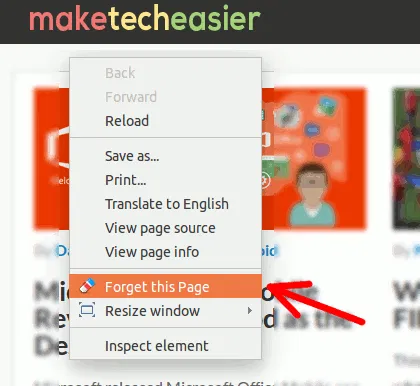
Under the “Extra” section, there is an option “Add Eraser commands to context menu.” When activated, you will find a new “Forget this page” option in the context menu. On any site where you don’t want it to leave a trace in your browser’s history, just right click your mouse and select the “Forget this page” option.
Smart Notification
As you browse the Web, History Eraser will show the number of pages you have visited on its icon. You can then access your History and remove a particular site from your History.
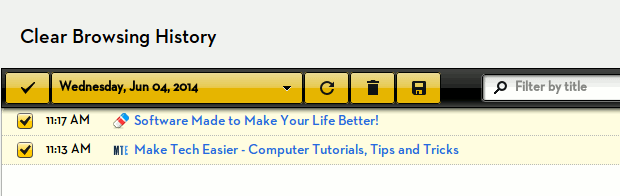
It will also remind you if you forget to remove your private data on time, and when it is time to perform a cleanup.
Conclusion
Even if you are not concerned about your privacy, it will also clean your browser’s history regularly as it will get bloated and slow down your browser. History Eraser is a useful tool that you can use to quickly clean up your browser. The fact that it is available for Windows, Mac, Linux and ChromeOS makes it an even better tool.
Is this something you will use often? Let us know in the comments.