If you have used Google Chrome for a while, you may have noticed that sometimes it will block your downloaded files and flag them as a malicious software. This happens because the downloaded file information is sent to Google’s servers where Google maintains a remote list of malicious software and websites. For Firefox’s users, that same feature is baked into Firefox (from version 31) as well. If you are not a fan of Google vetting your downloads, here is how you can stop Firefox from sending downloaded file information to Google.

Note:

1. According to Mozilla’s wiki, Firefox will only send information for executable files (.exe).

2. Although Firefox 31 has the remote lookup feature, it will only become fully integrated from Firefox version 32, and it is a Windows only feature.

Prevent Firefox from Sending Downloaded File Information

1. There are two ways to prevent Firefox from sending downloaded file information to Google. The first way is to change a value inside Firefox configuration settings. To do that, open up your Firefox browser and type about:config into the address bar and press the Enter button (make sure you are using version 31 or above).

2. If your Firefox browser displays a warning message, just read it and press the “I’ll be careful, I promise!” button to continue.
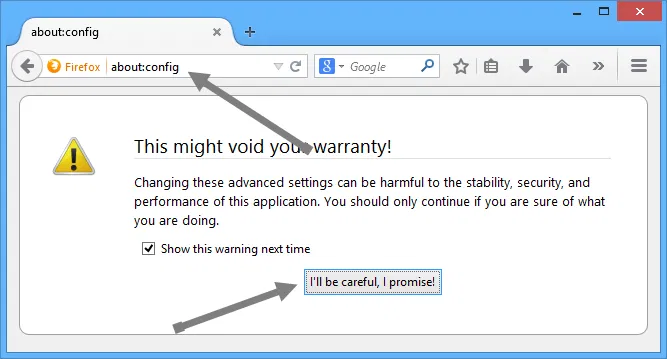
stop-firefox-sending-file-info-warning-message

3. Now in the search bar, type browser.safebrowsing.appRepURL. This will reveal a preference name or string with a Google URL in its value.
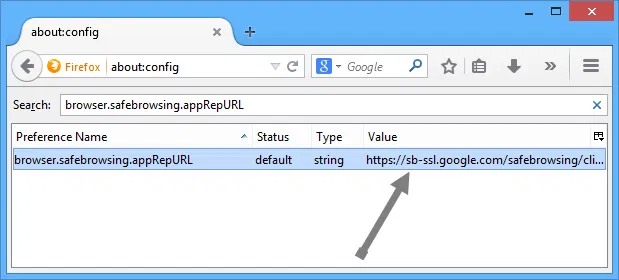
stop-firefox-sending-file-info-app-reputation

4. Just double click on that string to open the “Edit string value” window. Delete the entire URL and click on the OK button to save the changes.
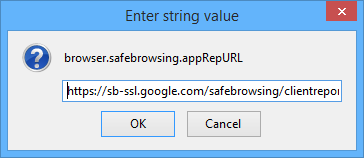
stop-firefox-sending-file-info-edit-string-value

5. Once you have deleted the URL, the string looks something like this.
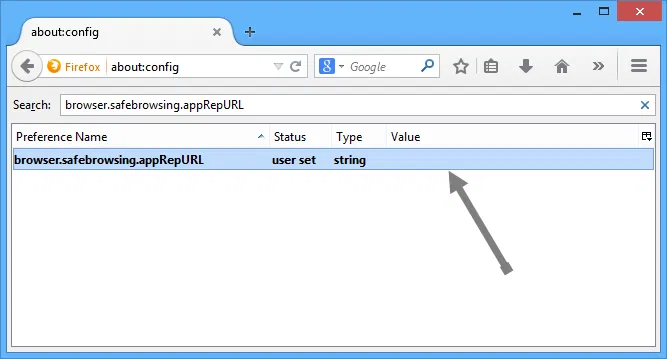
stop-firefox-sending-file-info-after-deleting-value

That’s all there is to do; you have successfully disabled the remote lookup feature in Firefox.

If you don’t want to mess with Firefox configuration settings, the second method is to disable the “safe browsing” feature completely. By disabling this feature, Firefox won’t protect you from any malicious or phishing websites. You have been warned!

1. To disable safe browsing, open up your Firefox browser, type about:preferences and press the Enter button to open the Firefox preferences page.

2. Navigate to the security tab and uncheck the check boxes “Block reported attack sites” and “Block reported web forgeries.” Once you have done that, just close the page to save the changes.
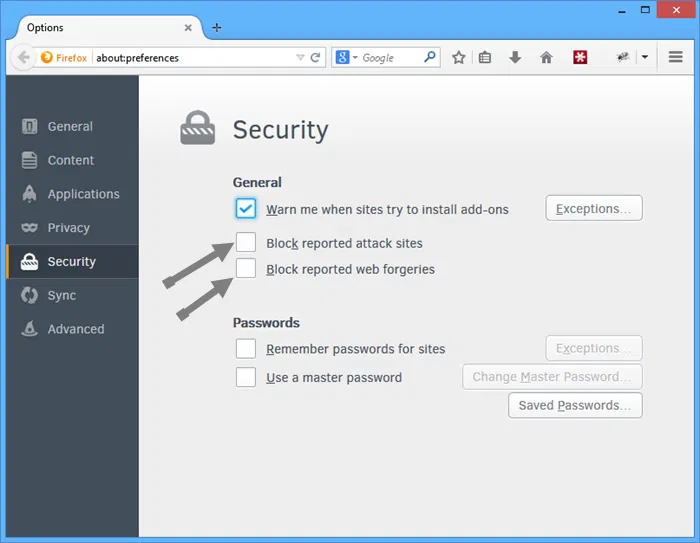
stop-firefox-sending-file-info-disable-safe-browsing

That’s all there is to do.

So, what do you think of this newly introduced application reputation feature in Firefox? Do share your thoughts using the comments form below.

How to Encrypt Your Gmail Message and Protect Your Privacy

If you are really concern about the privacy of your email, you should really consider encrypt your Gmail message so even Google can’t view it.

Need a QR Code? Quickly Generate a QR Code With This URL

Need a QR code? Here is one quick way to generate a QR code with a URL.

The Easiest Way to Automatically Open Websites in Incognito Mode [Chrome]

Are there websites that you only want to view in Incognito Mode? The Incognito-Filter Chrome extension will let you do that in a snap.

Add Any Website to the Chrome App Launcher with this Trick [Windows]

If there’s a website that you visit frequently, you can now add it to the Chrome App Launcher for easy access, thanks to this quick trick.

How To Share Web Content Fast With Cortex for Chrome

If you want to try a faster way to share web content online, you might want to try an extension for Google Chrome called Cortex.

How to Organize History By Tags in Google Chrome

The History tool in Google Chrome can be in a mess sometimes. Better History provides a more structured way of searching and viewing recently visited sites.

Use Rublon to Add Automatic Two-Factor Authentication to WordPress

Rublon is a plugin that implements two factor authentication in WordPress, without you having to do the additional authentication step. Let see how it works.

Looking For a Secure Chat App? Try BitTorrent’s New P2P Messenger Bleep

Looking for an app to chat securely and privately with your friends? Try BitTorrent new P2P messenger Bleep that offers end-to-end encryption.

How to Transfer the Contents of User Profiles in Firefox

If you are trying out a new Firefox-based browser, you can transfer the content of your old user profiles so all your items are intact. Here’s how to do it.

How to Get Rid of the Stickers in Comments on Facebook

Facebook added the sticker feature in its comments section. For those who dislike it, you can disable stickers in Facebook comments in Chrome and Firefox.

How to Restore the Old Search UI to Firefox

Firefox 34 changed the look of the search box. For those who are not used to the new look, here’s how you can restore the old search UI in Firefox.

Easily Download Torrents to the Cloud with Bitport

Are you having difficulty downloading torrents with your current Internet connection? Bitport allows you to download torrents remotely and access them online.