Safari was the first browser to include a ‘Reader’ mode, with a full-screen page replacing the traditional web page in order to make content more readable. Whether it benefits you or not, the concept has inspired similar extensions for Mozilla’s Firefox web browser, two of which have proven very popular since their release. Their popularity begs only one question: “Which is better?”
iReader is the older of the two extensions, having last been updated in 2011. For a relatively small piece of software that typically indicates abandonment, it remains compatible and so is worthy of comparison. The simply titled “Reader” has been updated well into 2014, and is the more popular of the two. Reviews on Mozilla’s own site give Reader a higher rating, with five stars compared to four.

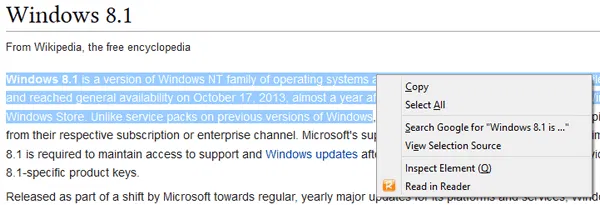
Upon installation, the two differentiate themselves by placement. iReader appears as an icon in the address bar, while Reader sits among the other extension buttons in the browser’s main UI. Unsurprisingly, this means that the Reader settings are available on demand, while iReader requires you to view your installed extensions or view a page with it, before mousing over the page to reveal numerous functions that do not exist in Reader.
iReader:

Reader:

As the aim behind these extensions is to make long-form text more comfortable to read, it is necessary to test websites that frequently produce such content. As there are hundreds, if not thousands, of sites reporting news and providing insight, it is not possible to test them all. For this reason, we have provided only images comparing the two for a few major websites, and a more detailed graphic below this.
Across all of the sites, iReader was noticeably faster at producing a lightened version of the page, though neither brings a totally perfect representation of all the content all the time. This is particularly noticeable with the CNN page above, which featured a video that neither extension was able to display properly on our test machine. Reader was consistently slower, displaying at times a banner with the words “Extracting Content”.
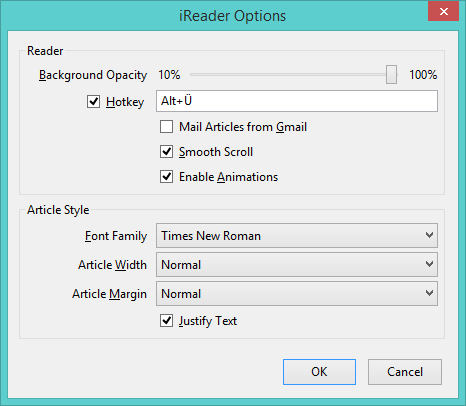
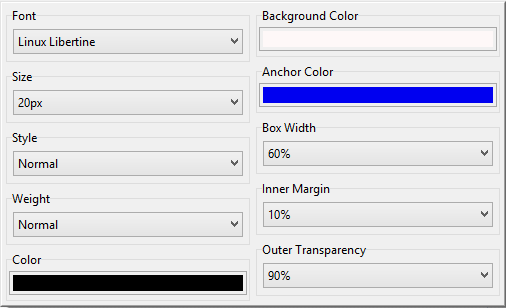
Both extensions provide a pleasing number of options, though it is quite obvious that Reader wins in this regard by allowing you to do more to personalise your reading experience through fonts, width adjustments and transparency. One edge that iReader does have in this regard is a shortcut key to bring up a stripped down version of the page. This is a feature we’re very fond of, for it makes it effortless to switch views. With the code being years older than Reader’s, it is not surprising that iReader does include a few unusual bugs: For instance, after displaying a page through iReader and then dismissing it, you cannot bring the iReader display up on that page again until you refresh it. This simply does not happen in Reader; the stripped-down version can be closed and opened as desired.
Once you’ve gotten to a point where you’d like to use a tool for easier reading online, you might also want to adjust elements until they suit your own preferences. In this regard, Reader is the clear winner, with significantly more options to tweak. Almost every single element can be adjusted to some degree. Reader allows the use of any installed font, any link colour, and a fairly large number of page widths. iReader has few options, and they lack the same level of control as well. This is quite possibly the reason that it is able to produce pages more quickly, though if they are not to your liking despite the options it provides, then there is a clear winner.
In the event that you are not particularly concerned with finer control over the appearance of the pages, then it becomes a much closer race. iReader is faster and arguably more elegantly integrated, as well as including social media integration. Reader is slower, but allows you to do more to adjust your overall experience. Neither can display everything perfectly, and neither works on every website you’ll find, but in our experience, iReader is dominant in this regard as well. While ultimately a subjective test based on your own browsing, we found iReader to appeal more in spite of its age. While no promises can be made for its future compatibility, we feel it has managed to maintain superiority until this point.