Doing research on the web is one of the conveniences of our digital era. Information is easily accessible with a click of a button, and you don’t need to make that trip to your local library to pour over pages of books.
The challenge, however, is organizing information when it’s scattered all over the web. When you’re doing research that’s heavy on citations, simply bookmarking webpages may not be enough for you to track each source of information.
A helpful Chrome extension called Citable addresses this challenge by enabling you to save a website’s link, along with your notes, to a Google Spreadsheet document.
Installing and using Citable
Upon installing the extension, you will find a quotation mark icon on the top-right corner of the browser.
With the webpage that you want to save in the current tab, click on the icon.
If this is your first time to use the extension, a Google sign up window should prompt you to log in and allow access to your Google Drive account. This is where your saved links will be stored. Click on the “Allow” button to authorize the extension.
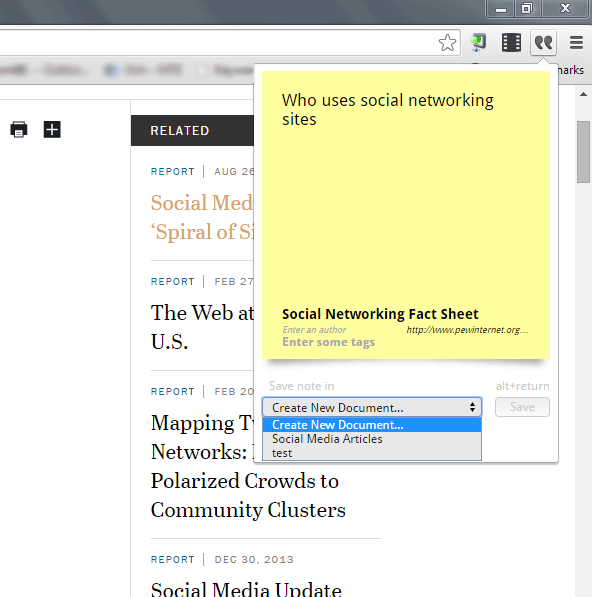
Once you’re signed in to your Google account, you should now see a drop-down notepad when you click on the quote icon.
In most cases, the notepad should already have a current webpage’s information, such as article title, author and URL. If it doesn’t appear, you can add it manually. You can also add a tag and a summary that will be included in the Google spreadsheet.
When done, click on “Create Document” on the drop-down list on the bottom, and give your document a name. Click the Save button.
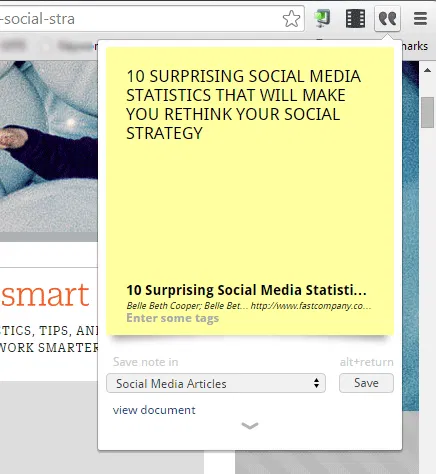
The new document will be stored as a spreadsheet file in a folder called Citable on the main page of your Google Drive account.
Once saved, there should be a link to view the document. Clicking the link will open a new tab and take you directly to the document in Google Drive.
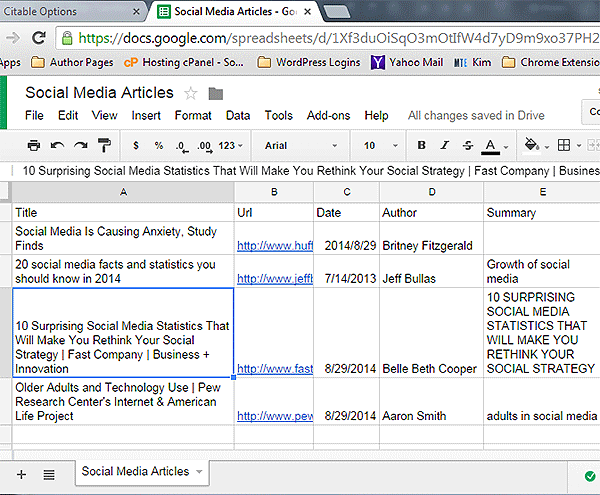
The spreadsheet is organized into six columns which are comprised of the title, URL, date, author, summary and tag of saved webpages.
Repeat the same process for each webpage you want to cite as your source.
If you are researching a different topic, you can create another document so you can separate sources accordingly.
New webpages that are added are updated in the spreadsheet in real time, so you see them on the spreadsheet as soon as they’re added.
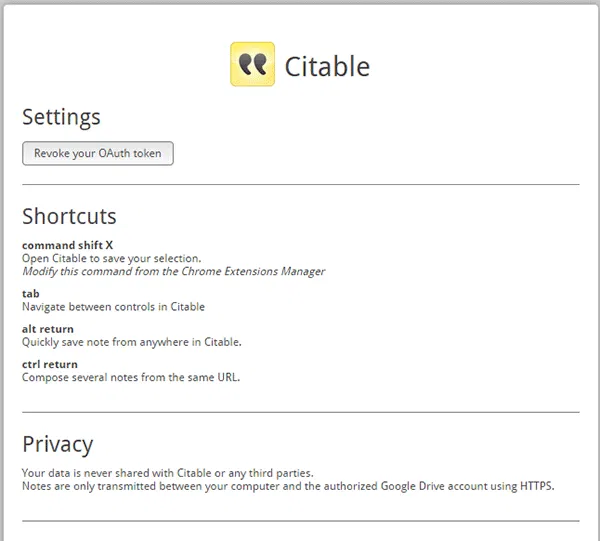
If you want to learn keyboard shortcuts, you can right-click on the quotation icon and go to “Options.” You should see four hotkeys for navigating and using the extension.
Citable is a perfect solution for heavy research work that requires a lot of citations from different sources. Getting all citation information organized into a nice spreadsheet is also a huge time saver which cuts down extra work for the busy researcher.
Having Google spreadsheet as a way to save the document is also a great feature, so it’s safely backed up in your Google Drive account, and you don’t have to worry about the file getting accidentally deleted or lost.