When it comes to browser bookmarks, there are two kinds of people: those who don’t have many and those who have hundreds. I’m among the latter, so I’m always looking for better ways to organize them. That’s how I found ViewMarks, a great Firefox add-on which is all about the visual experience. ViewMarks puts a creative twist on bookmarks while using a familiar file manager paradigm – it lets you preview and manage your bookmarks like they’re files and folders.
Getting Started
If you’re interested in trying out ViewMarks, you can get it from the official Firefox Add-ons website. There are several ways to open ViewMarks:
- from the Firefox Preferences menu;
- by clicking the icon in the Add-on Bar;
- or by typing “about:viewmarks” into the address bar.
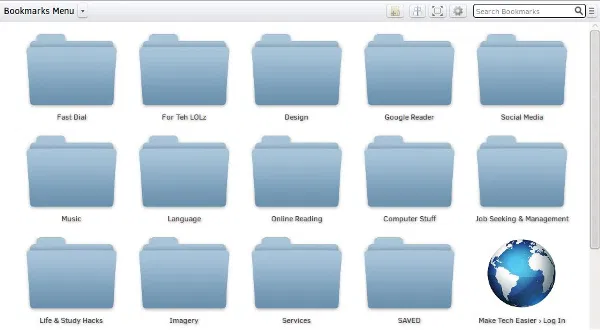
All your bookmarks will be represented by a globe icon and sorted into their respective folders. Both bookmarks and folders can be opened in new tabs or windows, and ViewMarks will create a preview image for every bookmarked website you visit to give you that classic “speed dial” look.
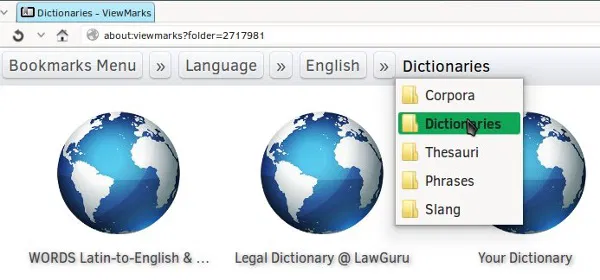
The main ViewMarks toolbar on the top consists of two parts: navigation and settings. The navigation is breadcrumbs-style, so you can quickly move between folders and access any subfolder by clicking the double-arrow button.

The right-aligned part of the toolbar lets you create a new folder, align bookmarks, and adjust the size of preview images and folder thumbnails. The “cog” button opens “Preferences”, and the one after the search box opens advanced search settings, where you can filter your bookmarks by tags, description, title, keywords and more.
Setting Up ViewMarks
Before beginning to work on your bookmarks, make sure that ViewMarks is properly configured. You can enable bookmarks rating, adjust history settings, turn on the “Trash” feature (which temporarily preserves deleted bookmarks), show or hide most visited bookmarks, toggle tooltips and suggested folders, change background color …
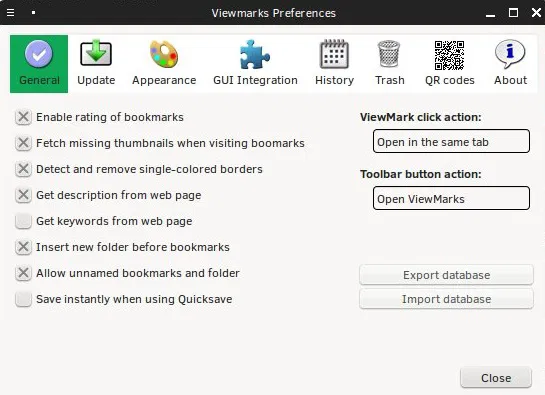
If you don’t want ViewMarks to store previews of websites, uncheck the “Fetch missing thumbnails” option in the “General” tab. To have ViewMarks download previews for all bookmarks, see the “Update” tab, but be careful as this can slow down or even crash Firefox.

The “QR codes” tab lets you enable a handy feature which creates a QR code of any website when you hover over a small icon in the address bar. This can be useful when you want to quickly share a link or copy it to a mobile device.
Replacing the Default Bookmarks Manager
While you can’t completely get rid of the default bookmarks manager – it’s an integral part of Firefox – ViewMarks can take over its main functions. See the “GUI Integration” tab in the “Preferences” dialog.
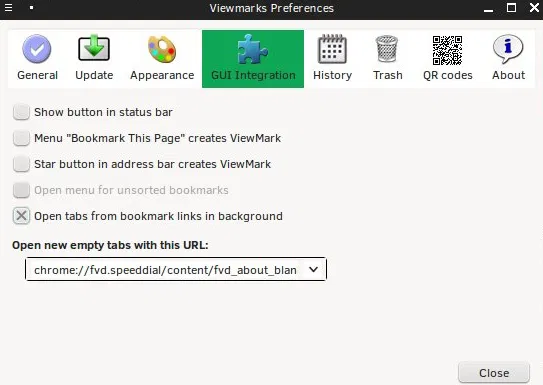
If you check the options here, new Firefox bookmarks will be created through ViewMarks, regardless of whether you make them by clicking the star button in the address bar or via the Bookmarks menu. ViewMarks can also replace any speed dial add-on, because you can create a folder with bookmarks you want to use as speed dials, and then set that folder to open in an empty tab by choosing it from the drop-down menu in the “GUI Integration” tab.
To backup your bookmark previews and folder structure, switch to the “General” tab where you can export the ViewMarks database as a JSON file.
Managing Your Bookmarks
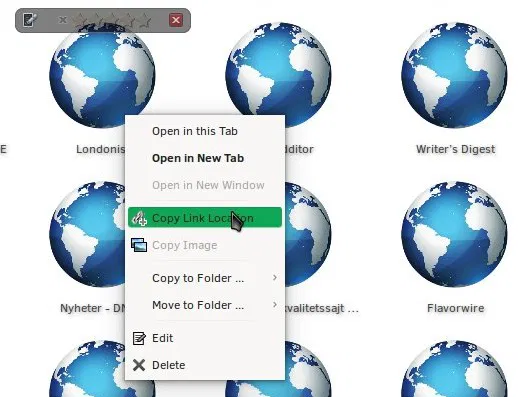
ViewMarks provides a logical way to organize bookmarks – if you know how to use a file manager, you won’t have any trouble using this add-on. Bookmarks and folders can be added, copied, removed, and rearranged by drag-and-drop or by selecting the options from the right-click menu.
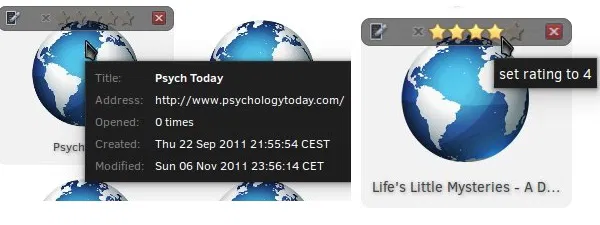
Hovering over bookmarks opens a short, informative tooltip, and if you’ve enabled the “Ratings” option, you can rate them on a scale from one to five stars. This is a good way to weed out the unnecessary ones and prepare yourself for the inevitable bookmarks clean-up.
Conclusion
ViewMarks is a versatile Firefox add-on perfect for people who want a clear overview of their bookmarks instead of the impractical tree-view of the default bookmarks manager. It can save you the trouble of installing multiple add-ons and help you get organized thanks to its many features. Have you tried ViewMarks before? How do you stay on top of your bookmarks? Share some tips with us in the comments.